Tutorial: building a model from scratch
This tutorial shows how to build a simple model of a CD radio player in the model editor. It is a simplified version of the CDRadioPlayer example project that you explore in Tutorial: exploring the CD radio player. If you have not read What is being modelled yet, read it first.
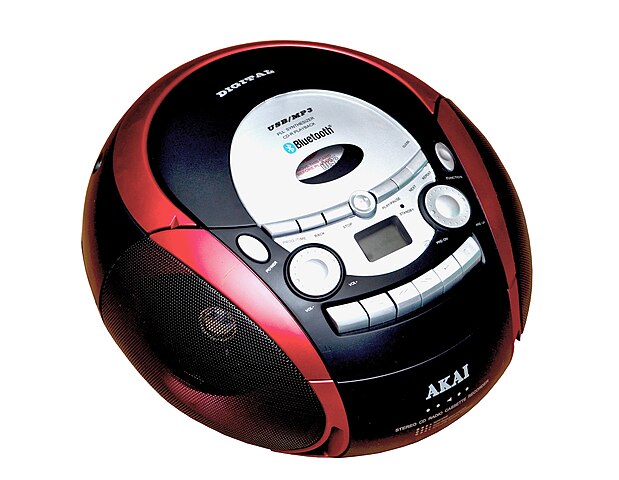
Fig. 6 A CD radio player. Source: Wikimedia Commons.

Note
The cluster diagrams in this tutorial come from an earlier version of this guide. Their colours differ slightly from the colours in the interface. For example, test results are light green there. The model also differs from the example project: it is simpler and uses other names. To compare your model with the diagrams, enable the diagram on the cluster pages (see Settings).
All steps are done in Editor mode. Remember that nothing is stored until you press Save in a form.
1. Create the model
Start the interface with an empty database (see Starting the interface).
On the landing page, click
 and create the root cluster
CDRadioPlayer.On the cluster page of
CDRadioPlayer, add two functions with in the Functions table: PlayCDandPlayRadio. These are the main functions of the device.
A root cluster cannot contain hardware. The hardware goes into the subclusters that you create next.
2. CD reader and radio receiver
Each component of the device gets its own cluster with a function, the hardware that realizes it, and a test.
In the Clusters table of
CDRadioPlayer, click and create
the cluster CDReader. Select both Add default hardware? and Add default function?, and name the functionReadCD. The interface creates the hardwareCDReader, which realizesReadCD.Make
ReadCDa subfunction ofPlayCD. Open the page ofPlayCD, click in the Subfunctions table and select
CDReader.ReadCD. Reading the CD is part of playing a CD.In the Diagnostic tests table of
CDReader, create the testTest_ReadCD. Select Add default test result? to createTest_ReadCD_Result, and enter a cost.On the page of
Test_ReadCD, open the tested items ofTest_ReadCD_Resultand select the functionReadCD. The result now indicates whether the CD can be read.
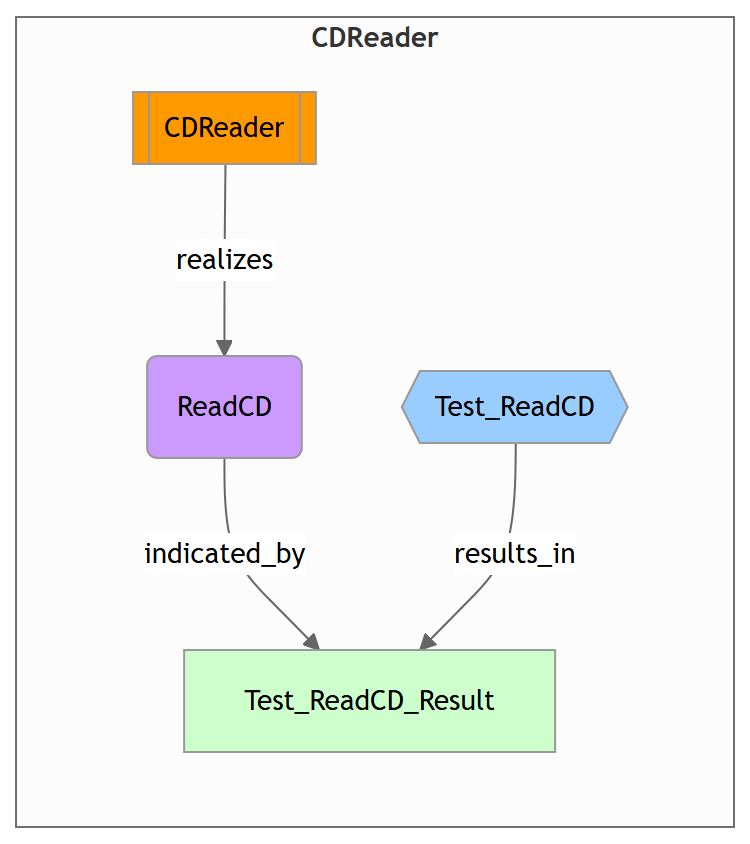
Fig. 7 The CDReader cluster.
Create the cluster RadioReceiver in the same way, with the function
ReceiveRadio (a subfunction of PlayRadio) and the test
Test_ReceiveRadio.
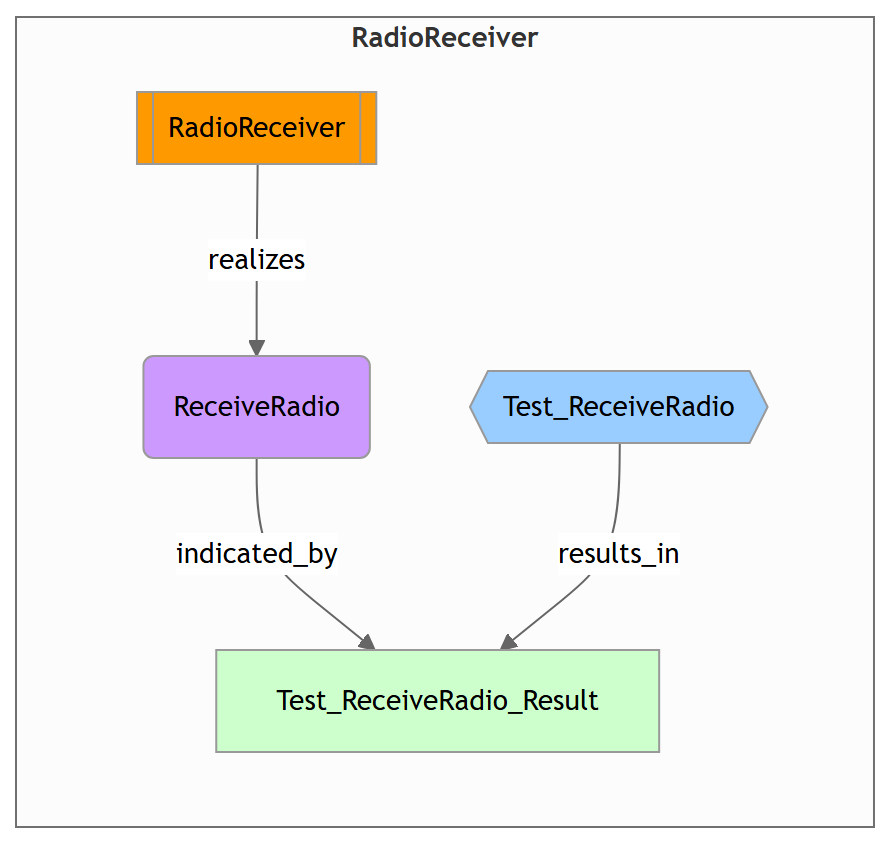
Fig. 8 The RadioReceiver cluster.
3. Audio system
Both playing a CD and playing the radio need the audio system. Create the
cluster AudioSystem like the previous clusters, with the function
GenerateAudio and the test Test_AudioSystem. Make GenerateAudio a
subfunction of both PlayCD and PlayRadio.
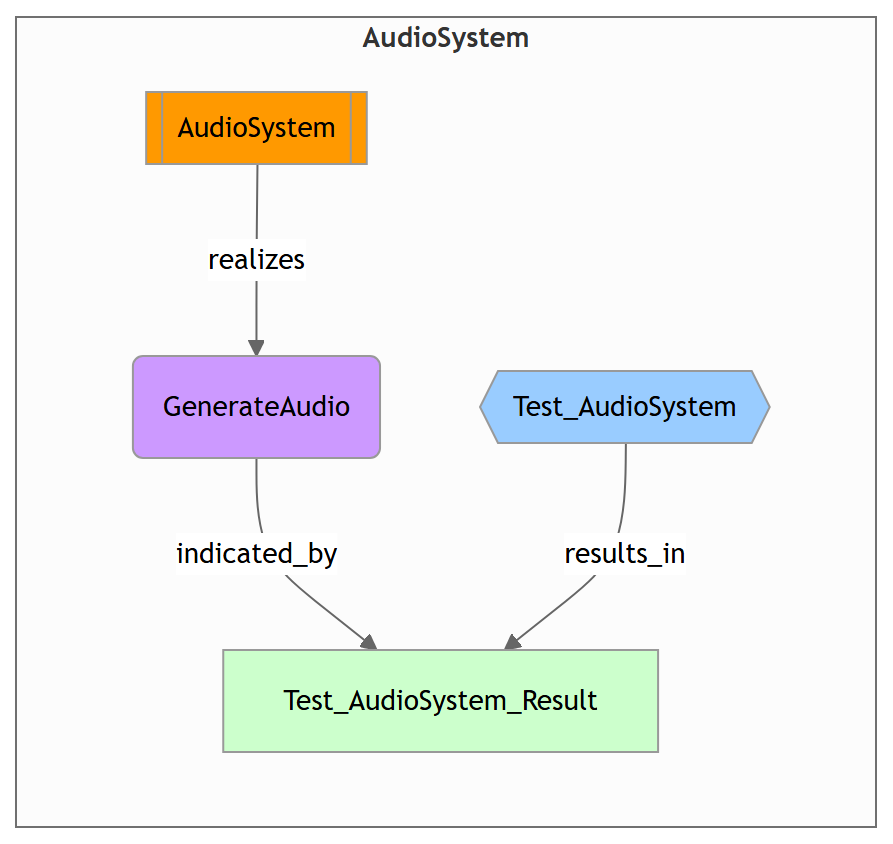
Fig. 9 The AudioSystem cluster.
4. Power system
The power system provides power to all parts of the device. The power comes from a battery or from the wall socket. A power board selects one of these sources and distributes the power.
Create the cluster
PowerSysteminCDRadioPlayer, with the hardwarePowerSystemand the functionProvidePower.In the Observables table of
PowerSystem, create the direct observablePowerLED. The LED shows whether there is power.On the page of
ProvidePower, click in the Observed by
table and select PowerLED.
Power board
In
PowerSystem, create the clusterPowerBoardwith default hardware and the functionDistributePower. Add the testTest_DistributePower, whose result indicatesDistributePower.Make
DistributePowera subfunction ofProvidePower.The CD reader, the radio receiver and the audio system need power. On the page of
DistributePower, click in the Required for table.
Add ReadCD,ReceiveRadioandGenerateAudioone by one, without operating modes.
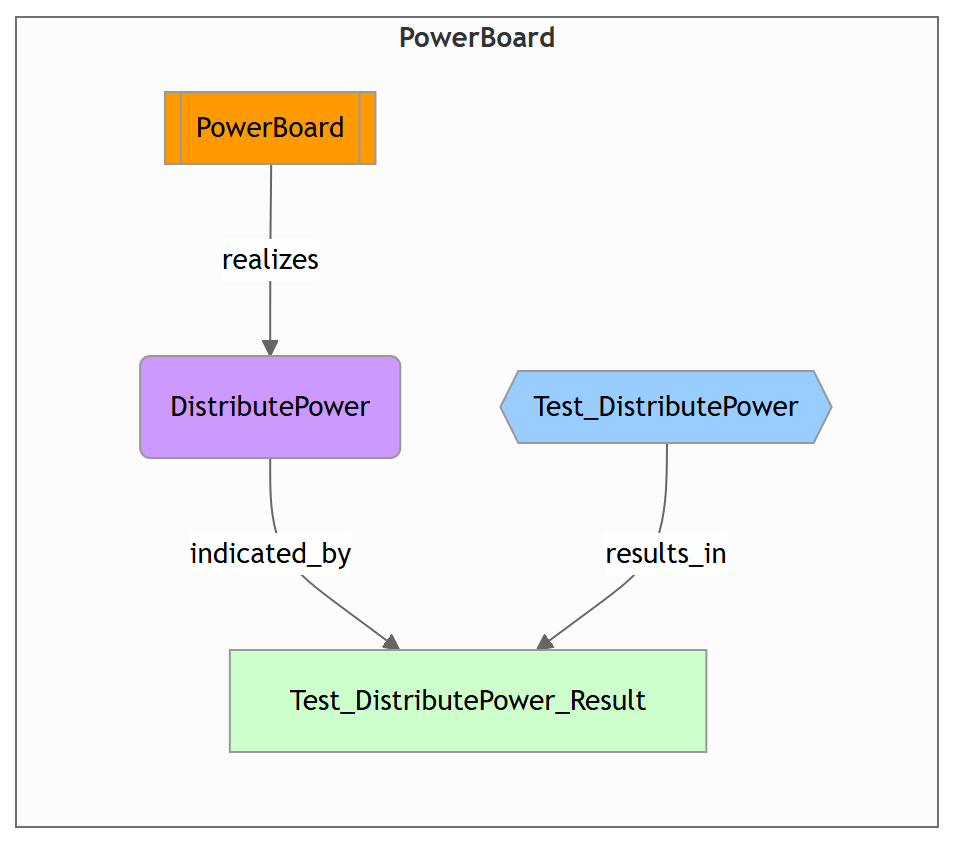
Fig. 10 The PowerBoard cluster. The diagram does not show the required for
relations to ReadCD, ReceiveRadio and GenerateAudio.
Operating mode: battery or wall power
The device runs on battery power or on wall power. Model this with an operating mode selector:
In the Operating mode selectors table of
PowerSystem, create the selectorSelect_Powerwith the operating modesBatteryPowerandWallPower.
The selector is placed in PowerSystem. Then its modes are available for
required for relations between the functions in all clusters inside
PowerSystem (see Required for).
Battery, AC-DC converter and power cable
The battery supplies the power board in the mode BatteryPower. In the mode
WallPower, the power cable supplies the AC-DC converter, and the converter
supplies the power board.
In
PowerSystem, create three clusters with default hardware and a default function:Batterywith the functionSupplyBatteryPower;ACDCConverterwith the functionConvertACtoDC;PowerCablewith the functionSupplyWallPower.
Make the three functions subfunctions of
ProvidePower.Add the required for relations, with the operating modes:
Function
Required for
Operating mode
SupplyBatteryPowerDistributePowerBatteryPowerConvertACtoDCDistributePowerWallPowerSupplyWallPowerConvertACtoDC(none)
Add a test with a default result to each cluster:
Test_Battery,Test_ACDCConverterandTest_PowerCable. These tests check the hardware, not the function. So in the tested items, select the hardware node of the cluster (for exampleBattery) instead of its function.
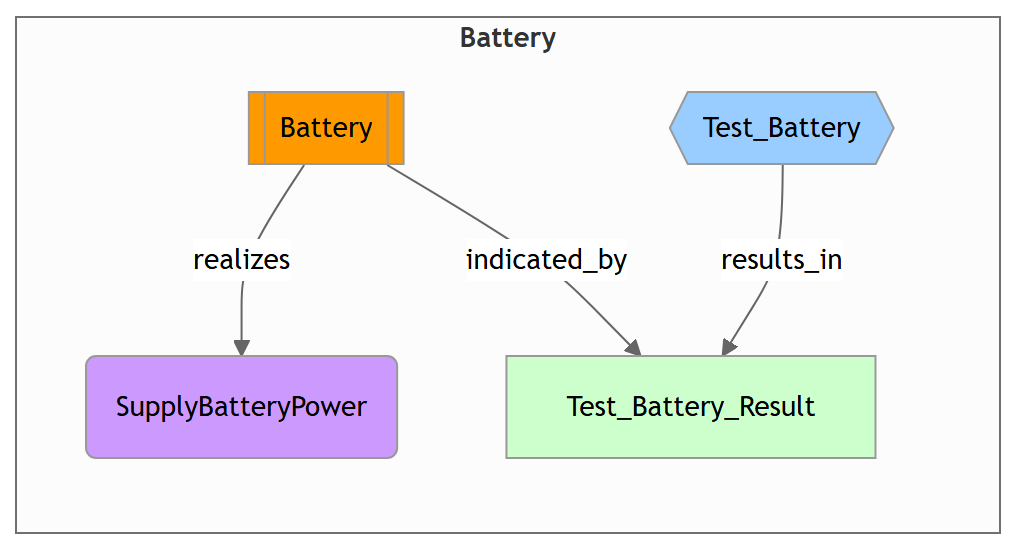
Fig. 11 The Battery cluster. The test result indicates the hardware.
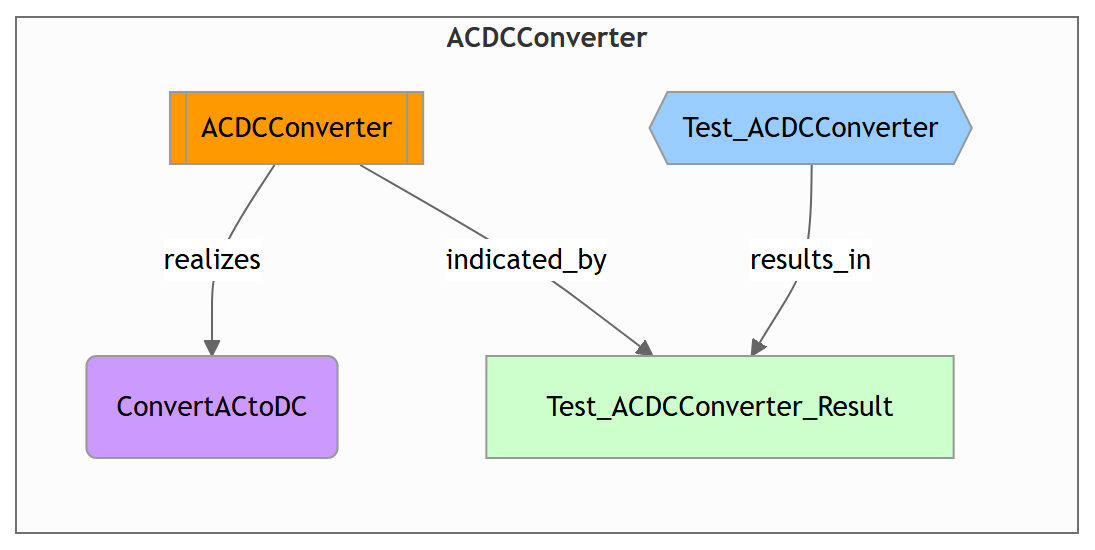
Fig. 12 The ACDCConverter cluster.
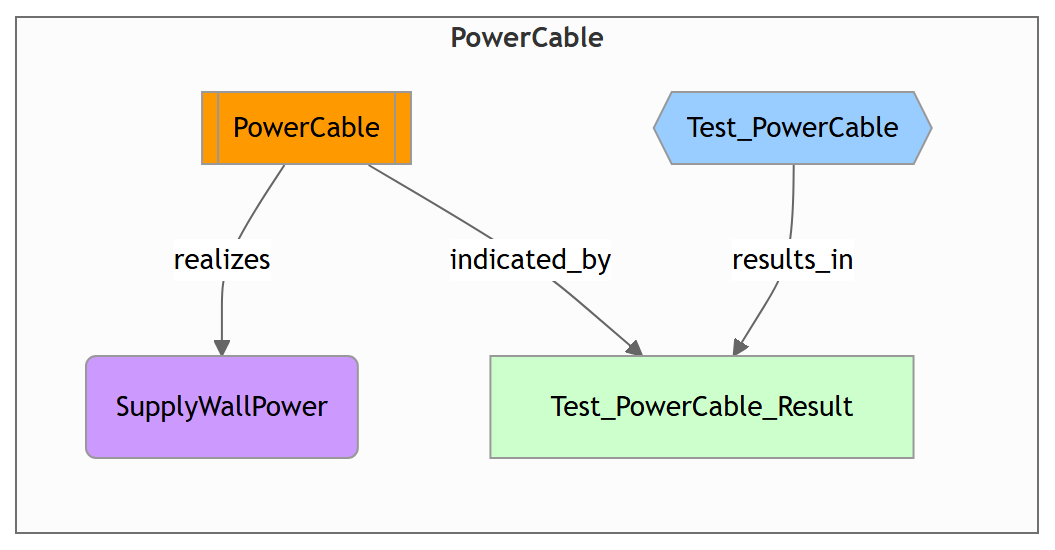
Fig. 13 The PowerCable cluster.
The complete power system looks like this:
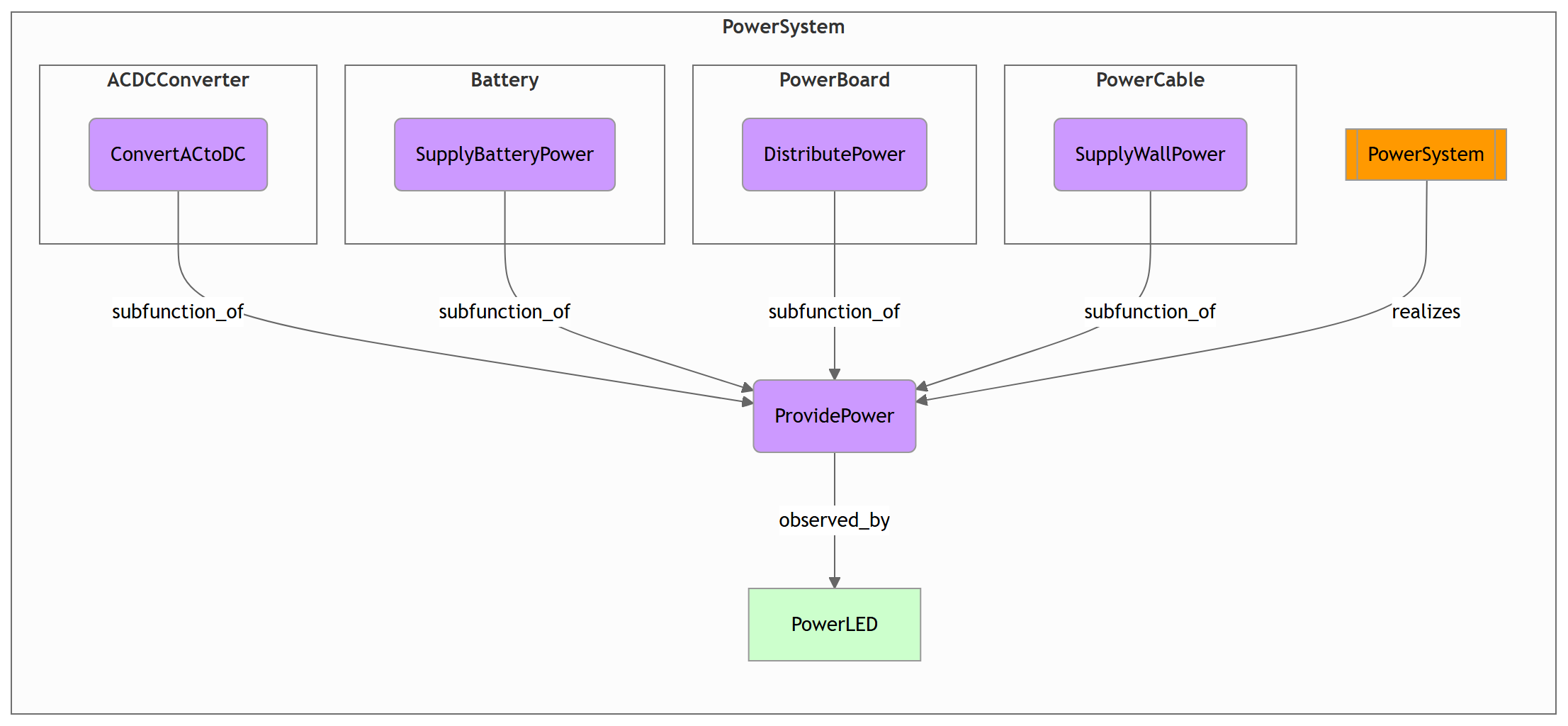
Fig. 14 Overview of the PowerSystem cluster. The operating mode selector, the
required for relations and the contents of the subclusters other than
their main functions are not shown.
5. Check the model
Check the dependencies on the required-for matrix of
CDRadioPlayer. The overview diagram does not show them.Run the validator and solve the reported problems.
To inspect the complete model, download it as a yEd graph with
 (see
Downloading the graph and Bayesian network).
(see
Downloading the graph and Bayesian network).
6. Diagnose a failure
Open the The diagnoser from the CDRadioPlayer cluster and try this
scenario:
The device runs on batteries. Set the operating mode of
Select_PowertoBatteryPower.The power LED does not light up. Set
PowerLEDtoNOk.Click Compute. The diagnoser shows the most likely broken hardware and suggests tests.
Perform the suggested tests and enter their results. For example,
Test_DistributePowergivesNOkandTest_BatterygivesOk. Then the power board is the most likely cause.
The exact ranking of the tests depends on their costs, the fault rates and the balance setting. Your model may therefore suggest the tests in another order.
Next steps
Add custom faults and states, and their CPTs.
Analyse the diagnosability of the design in Design for diagnostics.
For larger models, model the system in Capella and import it (see Modelling in Capella).