The interface
Layout
Every page has the same frame:
a header with the title, the switch between the Editor and Tree modes, and the settings button (gear icon);
in Editor mode, a navigation drawer on the left with the cluster tree;
the page content, which starts with a title and a toolbar of action buttons on the right;
a footer.

Fig. 16 The header with the mode switch (Editor/Tree) and the settings button.
Editor mode and Tree mode
The interface has two modes. Switch between them in the header. The mode applies to the whole server, so all users of an instance share it.
- Editor mode
The full model editor. Every element has its own page, with tables of related elements and buttons to create, change and delete elements and relations. Use this mode to build and maintain models (see Building and editing models).
- Tree mode
A compact, read-oriented view. It shows a cluster as an expandable tree and the details of the selected node next to it. Use it to browse a model, manage CPTs, and start the diagnoser or design for diagnostics. The model structure cannot be edited in this mode.
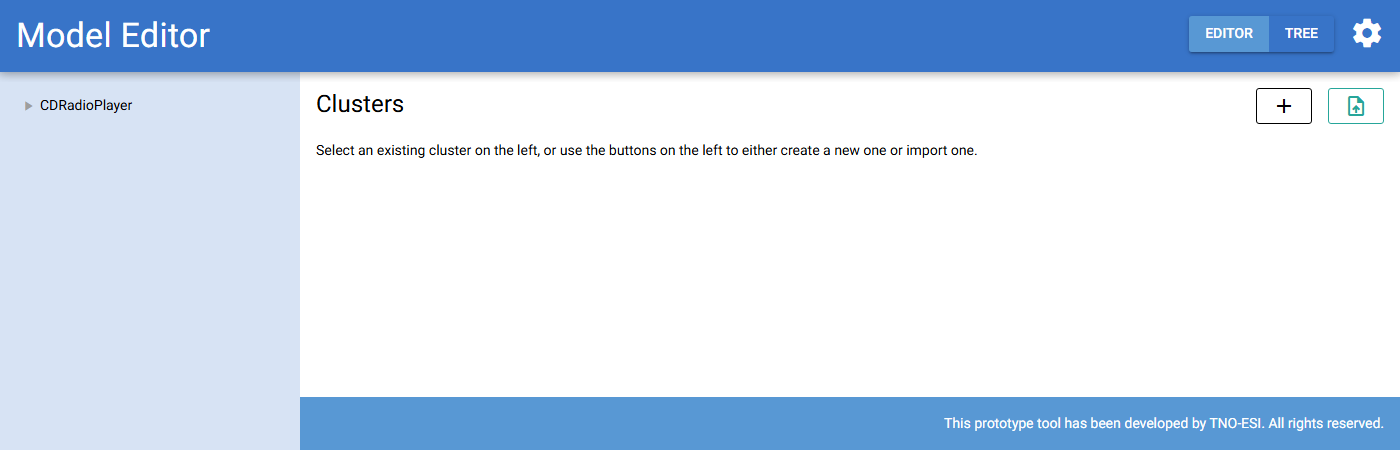
Fig. 17 The landing page in Editor mode lists the root clusters (models) in the database. From here you can create a new model or import one from Capella.
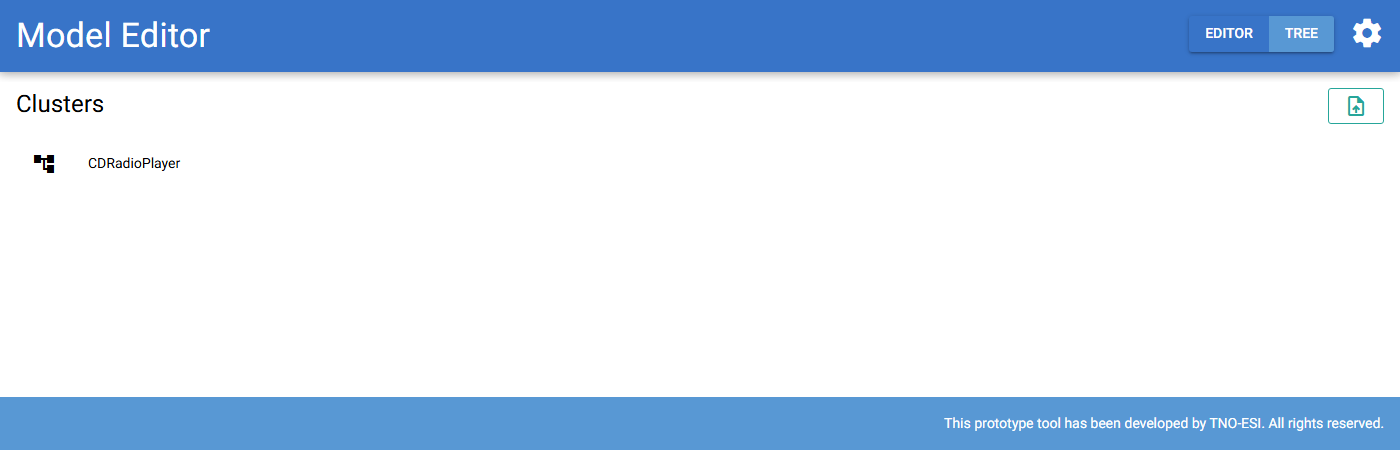
Fig. 18 The landing page in Tree mode.
Navigating in Tree mode
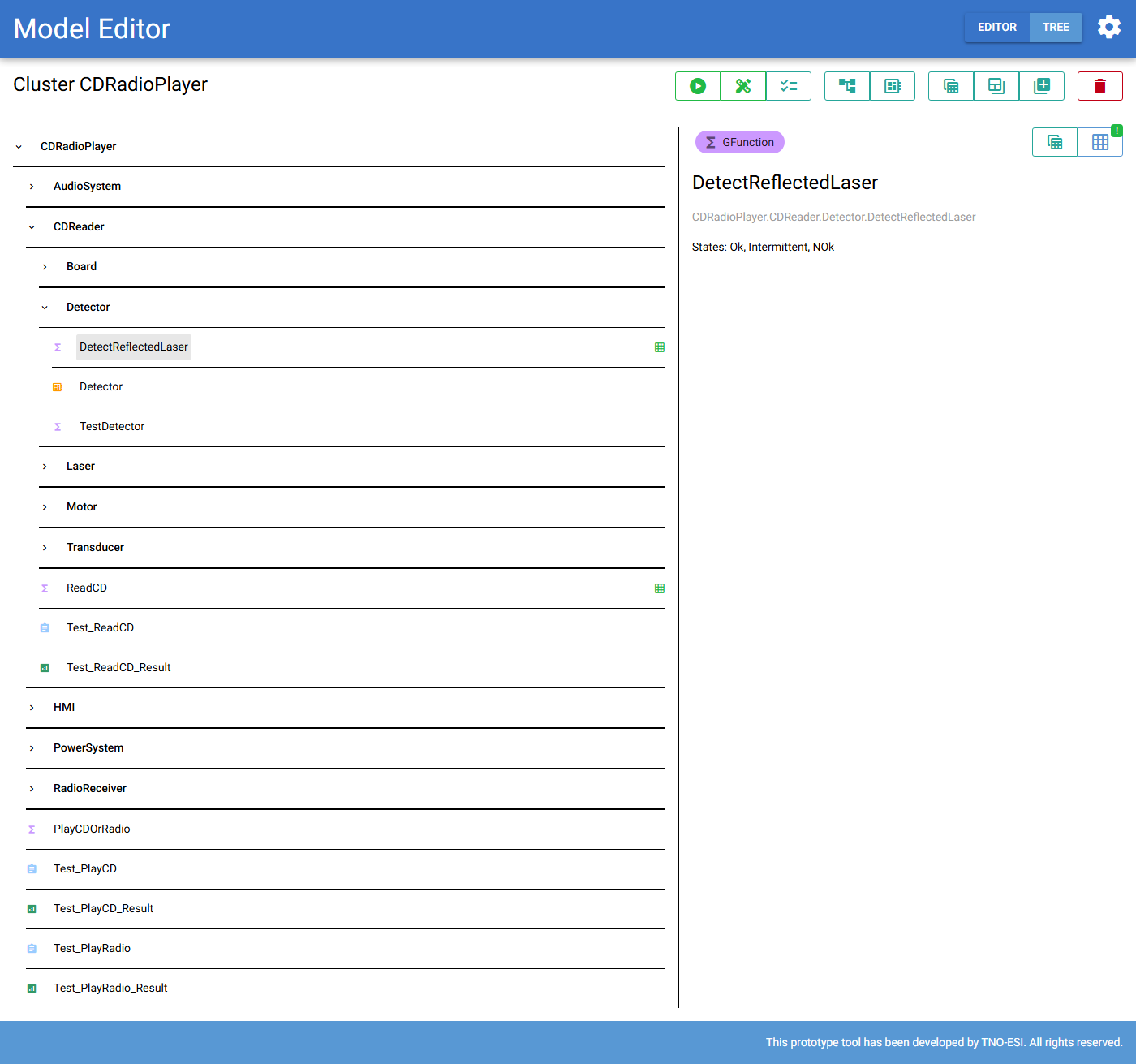
Fig. 19 The CDRadioPlayer model in Tree mode. DetectReflectedLaser is selected.
Its details are shown on the right.
Click a cluster to expand it. Click any other node to show its details on the right:
a chip with the element type, the name and the fully qualified name;
the states of the node;
a button to download the CPT of the node as a spreadsheet, and a button to modify it. If the node requires a CPT, the modify button has a badge. The badge is green when a CPT is provided and red when it is missing.
Nodes that require a CPT have a grid icon at the end of their row in the tree. The icon is green when the CPT is provided and red when it is missing. Click the icon to show the details of the node.
The toolbar of a cluster in Tree mode contains the diagnoser, design for diagnostics and check model buttons. It also contains the download and CPT import buttons (Importing and exporting), and a button to delete the cluster.
The cluster toolbar
In Editor mode, a cluster page has the toolbar below. Some buttons only appear for root clusters, or only for non-root clusters.

Fig. 20 The toolbar of the root cluster in Editor mode.
Button |
Action |
Described in |
|---|---|---|
|
Open the diagnoser (root only) |
|
|
Open design for diagnostics (root only) |
|
|
Check the model |
|
|
Download the knowledge graph (yEd |
|
|
Download the generated Bayesian network |
|
|
Import a Capella model into this cluster |
|
|
Download all CPTs |
|
|
Download required and existing CPTs |
|
|
Import CPTs |
|
|
Copy the cluster |
|
|
Move the cluster to another parent (non-root only) |
|
|
Show the required-for matrix |
|
|
Rename the cluster |
|
|
Delete the cluster and everything in it |


Hover over a button to see a tooltip that describes it.
Tables
Element pages show related elements in tables. Every table has the same controls:
 in the table header adds a new element or relation;
 on a row opens the CPT editor for that element (if it can
have a CPT);
on a row opens the CPT editor for that element (if it can
have a CPT); on a row edits the element or relation;
 on a row deletes the element or relation, after
confirmation.
on a row deletes the element or relation, after
confirmation.
Settings
Click the gear icon in the header to open the settings.
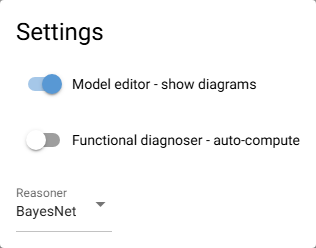
Fig. 21 The settings dialog.
- Model editor - show diagrams
Show a diagram of each cluster on the cluster page in Editor mode. Turn this off to speed up very large clusters.
- Functional diagnoser - auto-compute
Turn on Auto-compute in the diagnoser by default. The diagnosis is then recomputed every time you enter evidence.
- Reasoner
The algorithm used by the diagnoser and design for diagnostics: BayesNet (default), TensorNet or MarkovNet. All give the same results, but one can be much faster than another, depending on the model.
Settings are stored on the server and shared by all users of the instance.