Conditional probability tables
When you need a custom CPT
MBDlyb generates the conditional probability table (CPT) of every node from its relations and weights (see What is being modelled). This is enough for most of the model. A custom CPT is:
required when the node has custom states, for example a function with
Ok, Intermittent, NOk. It is also required when the node depends on a node with custom states: a required function, a subfunction, affecting hardware, or an observed or tested item. The validator reports a missing required CPT as an error;optional when you want to describe the behaviour more precisely than the weights allow. For example, a dusty detector makes detecting the laser intermittent, while a broken one makes it fail. With the generated CPT, every fault of the realizing hardware has the same effect.
Where to find the CPT buttons
Editor mode: the
 button on table rows, and the
Modify CPT button in the toolbar of functions and test results.
button on table rows, and the
Modify CPT button in the toolbar of functions and test results.Tree mode: select a node. The Modify CPT button has a red badge if a required CPT is missing and a green badge if it is provided. A grid icon in the tree marks nodes that require a CPT.
The CPT editor
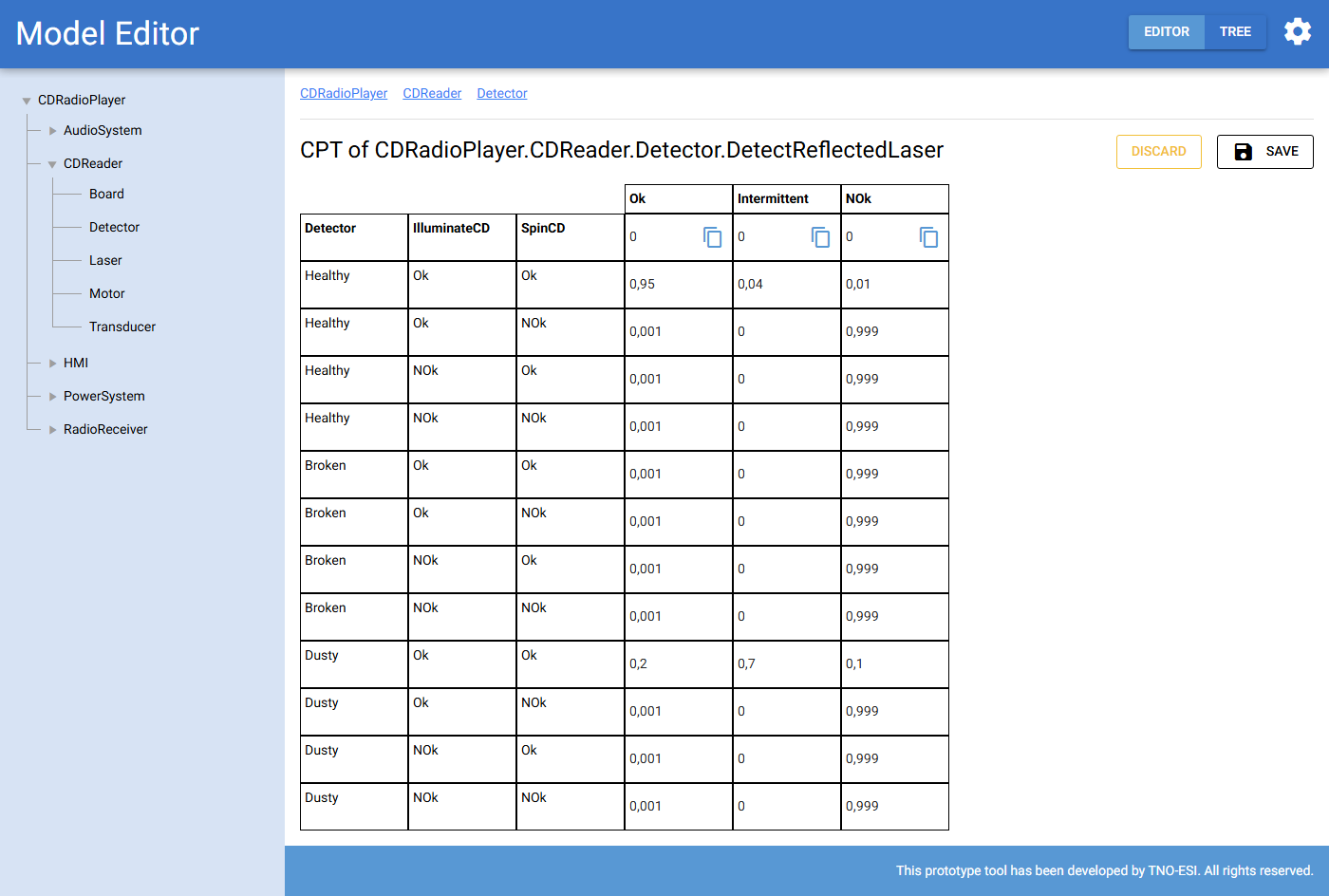
Fig. 41 The CPT of DetectReflectedLaser. It depends on the Detector
hardware and the functions IlluminateCD and SpinCD.
The editor shows:
one row for every combination of parent states. The left columns show the parent states, for example
Detector = Dusty,IlluminateCD = Ok,SpinCD = Ok;one column for every state of the node itself, for example
Ok,IntermittentandNOk.
Each cell holds the probability of the node’s state, given the parent states
in that row. In the example, a healthy detector with working inputs gives
Ok with 0.95. A dusty detector gives mostly Intermittent (0.7).
Tips:
The top row has a copy button for every column. It copies the value in front of it to the whole column. Use it to fill large tables with a default, and then adjust the exceptions.
You do not have to enter normalized numbers. When you save, every row is normalized to sum to 1. For example,
1and3become0.25and0.75.Drop removes the custom CPT, so the generated CPT is used again. This is only possible when the node does not require a CPT.
Discard leaves the editor without saving.
Note
A CPT depends on the parents of a node. If you add or remove relations later, the stored CPT no longer matches. The validator then reports the CPT as invalid, and you have to update it.
Exporting and importing CPTs
You can also edit CPTs in a spreadsheet. This is useful for large tables. It also helps when you re-import a changed Capella model: you can import the CPTs of a previous export again instead of entering them by hand.
 Download all CPTs
Downloads a zip archive with one Excel file per node that can have a CPT.
 Download required/existing CPTs
Downloads only the CPTs of nodes that require one or already have one.
Each file is named after the fully qualified name of the node
(<fqn>.xlsx) and contains the table in a sheet named CPT. If a node
has no CPT yet, the exported table contains zeros.
 Import CPTs
Opens the import page. Upload a zip archive or several Excel files.
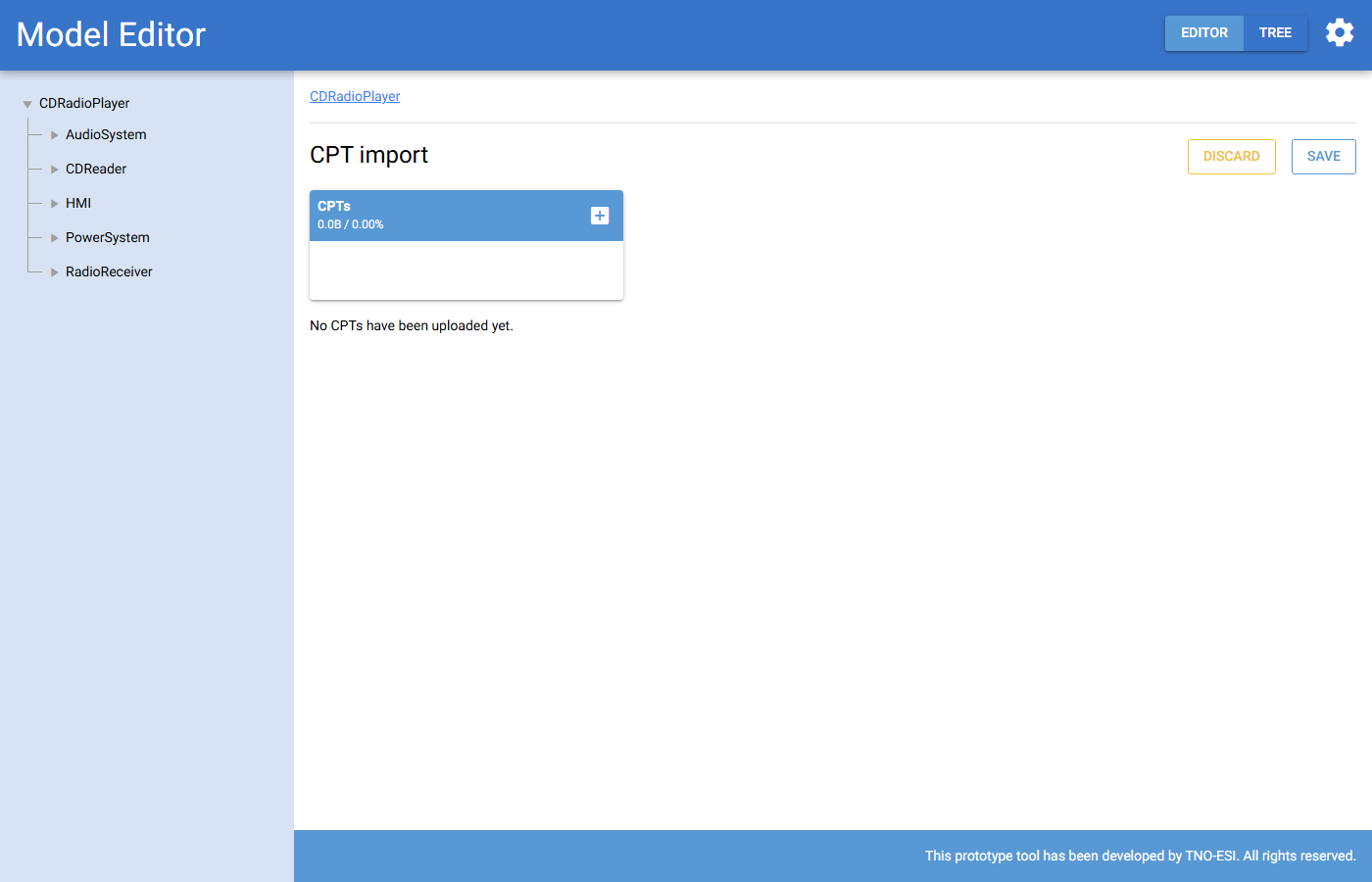
Fig. 42 The CPT import page after uploading an archive.
The import page processes the files immediately after you upload them, but it does not save anything yet. It lists all CPTs found:
a red badge marks an invalid CPT, for example one that does not match the parents of the node. Hover over the badge to see why;
an orange badge marks a CPT that overwrites an existing CPT. These CPTs are not selected by default;
if a node appears in several uploaded files, you can choose which file to use.
Select the CPTs you want to use and press Save.