Design for diagnostics
The diagnoser helps when a system has already failed. Design for diagnostics (DfD) helps earlier, during design. For every possible hardware fault, it analyses:
how the fault shows itself through the direct observables and observed errors (its signature);
which faults have the same signature and so need the same diagnostic procedure to be told apart;
which tests that procedure needs, in which order, and at what cost;
which faults cannot be distinguished with the available tests.
Use the results to decide where to add observables, error messages or tests, and to write service procedures.
Running the analysis
Open a root cluster and click  .
.
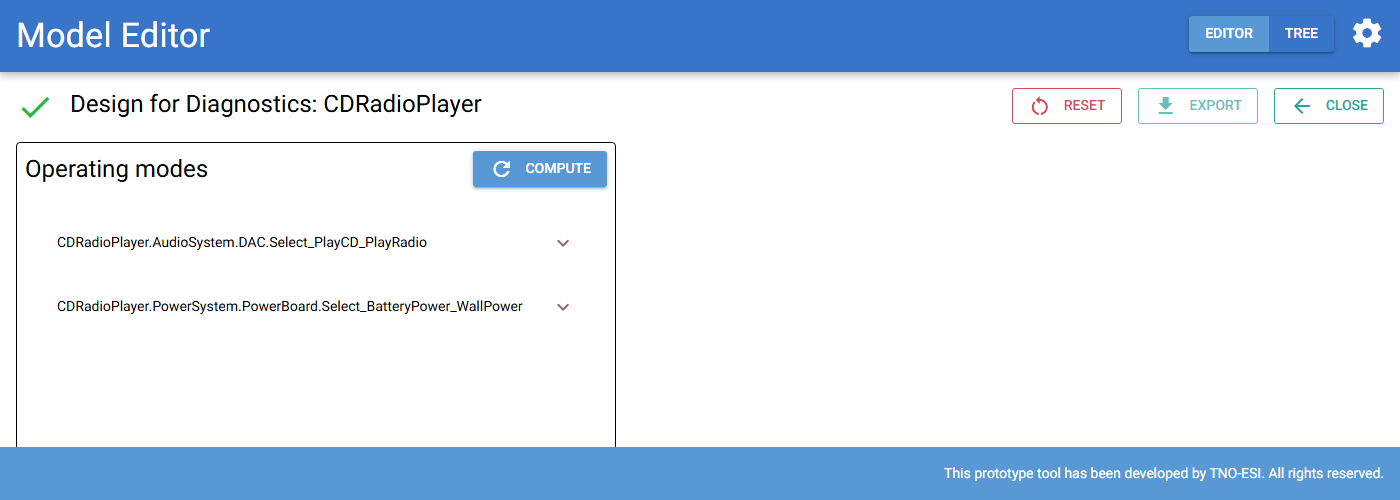
Fig. 74 Design for diagnostics before the analysis.
In the Operating modes section, expand each operating mode selector and select the mode that you want to analyse. Then press Save. Selectors that you do not set are treated as unknown.
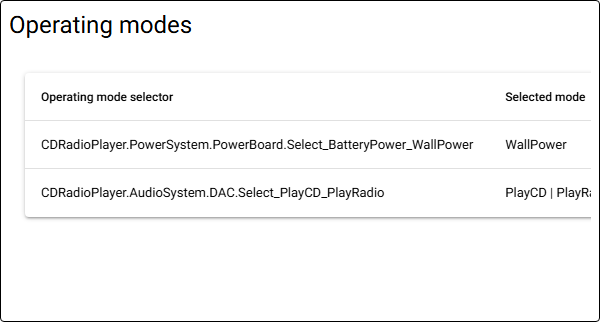
Press Compute in the Operating modes section. Depending on the model size, this can take a while.
Look at the results in the sections below. Use Export in the toolbar to download all results as an Excel file. Use Reset to clear the results and choose other operating modes. Close returns to the cluster.
In the example, the CDRadioPlayer is analysed with WallPower.
Signatures
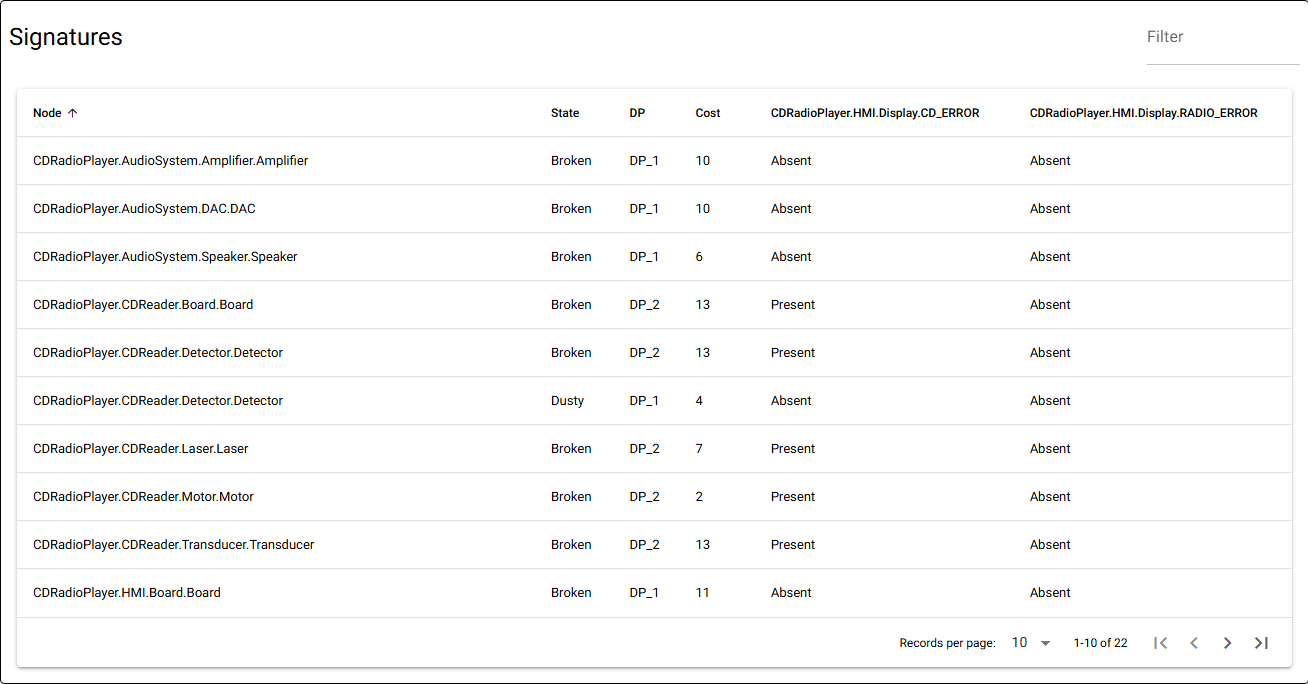
Fig. 75 Signatures of the CDRadioPlayer faults when it runs on wall power.
Each row is a failure mode: a hardware node in one of its fault states. The columns show:
DP: the diagnostic procedure that handles this failure mode;
Cost: the expected cost to diagnose this failure mode with that procedure;
one column per direct observable or observed error: the expected value when only this failure mode is present.
Failure modes with the same observable values have the same signature, and
are handled by the same diagnostic procedure. In the example, all faults in the
CD reader that cause CD_ERROR end up in DP_2. A dusty detector does
not cause CD_ERROR, so it ends up in DP_1.
Diagnostic procedures
Each tab shows one diagnostic procedure: a table of its failure modes with the expected test results, and a decision tree.
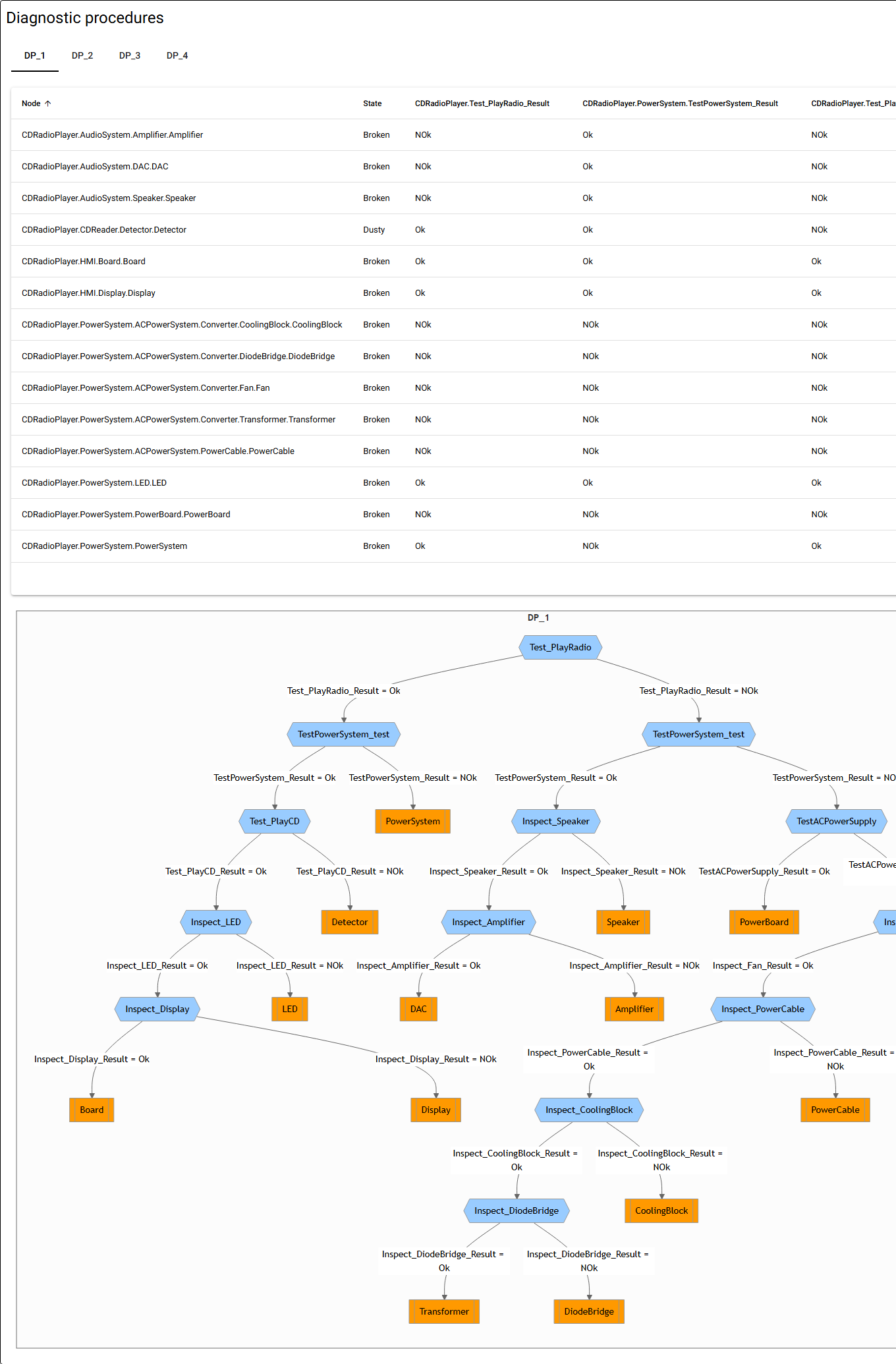
Fig. 76 Diagnostic procedure DP_1. The table lists the expected result of every
test for each failure mode. The decision tree is shown below the table.
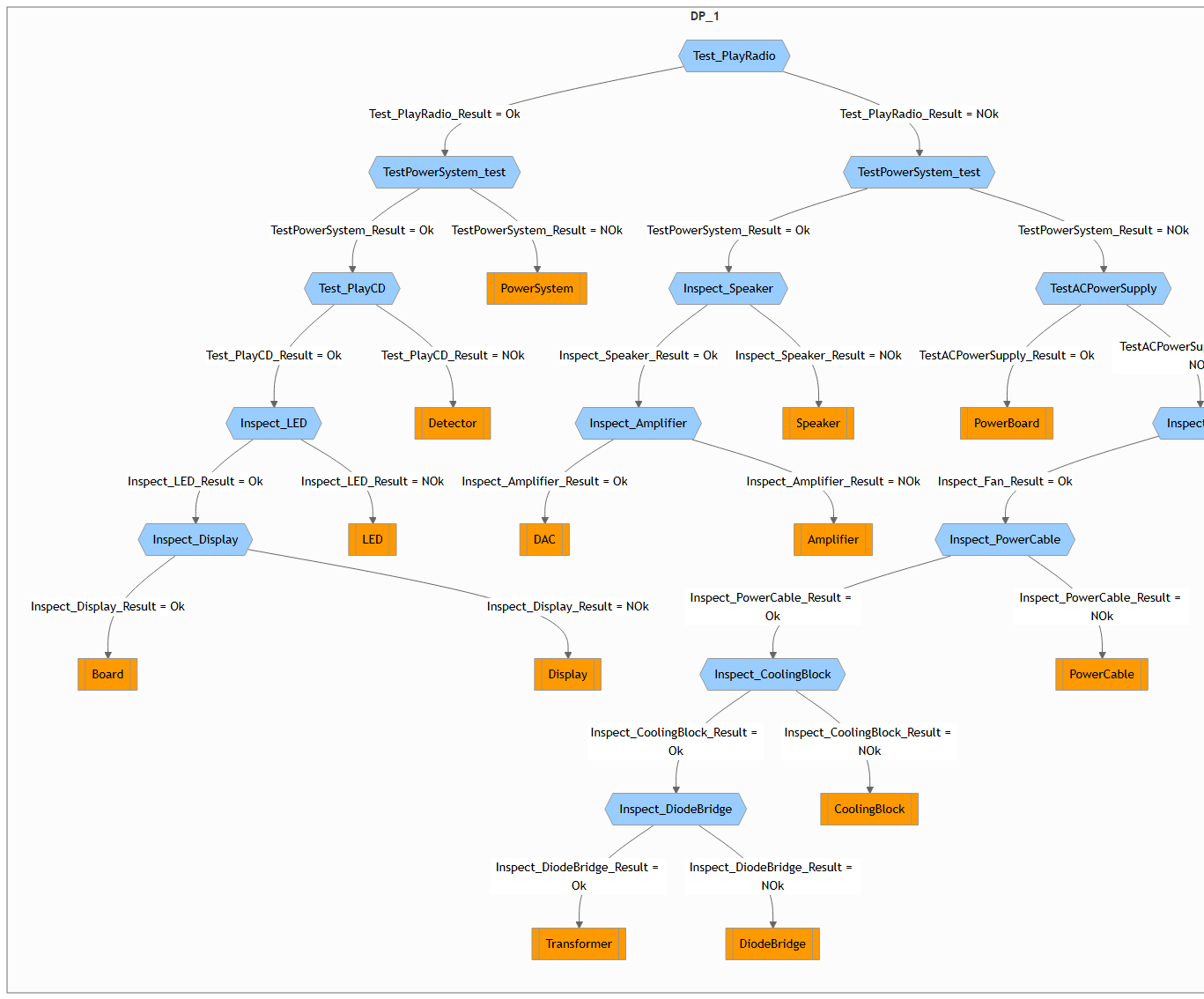
Fig. 77 The decision tree of DP_1.
Read the decision tree from the top:
blue hexagons are tests to perform;
the labels on the arrows are the test results that lead to the next step;
orange boxes are the conclusion: the hardware that is broken. A box with several names separated by lines is an ambiguity group, that is, hardware that the available tests cannot tell apart. A red box marks hardware that cannot be diagnosed.
Click a node in the tree to show its cost below the procedures. Use Export diagrams to download all decision trees as SVG images in a zip archive.
Overview
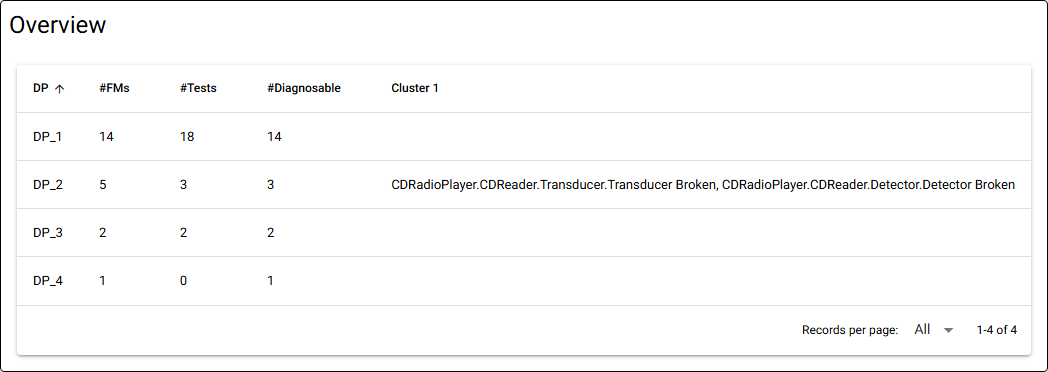
Fig. 78 Overview of the diagnostic procedures.
For each diagnostic procedure, the overview shows:
#FMs: the number of failure modes it handles;
#Tests: the number of tests it uses;
#Diagnosable: the number of failure modes that it can identify uniquely;
Cluster 1, 2, …: groups of failure modes that the tests cannot tell apart.
In the example, DP_2 cannot tell a broken Transducer from a broken
Detector. A test that tells these two apart would improve the
diagnosability of the design.