Modelling in Capella
Usually you create an MBDlyb model by importing a Capella system model. MBDlyb converts the components, functions and functional exchanges of the logical or physical architecture into clusters, hardware, functions and required for relations. Add diagnostic annotations to the Capella model as well. The more complete the Capella model is, the less you have to change in the editor after the import, and the easier it is to import the model again after it changes.
Importing a Capella model
To import a new model, open the landing page (http://localhost:8080/) and use the import button. This works in both Editor mode and Tree mode.
To import into an existing cluster, use
 in the
cluster toolbar (Editor mode only).
in the
cluster toolbar (Editor mode only).
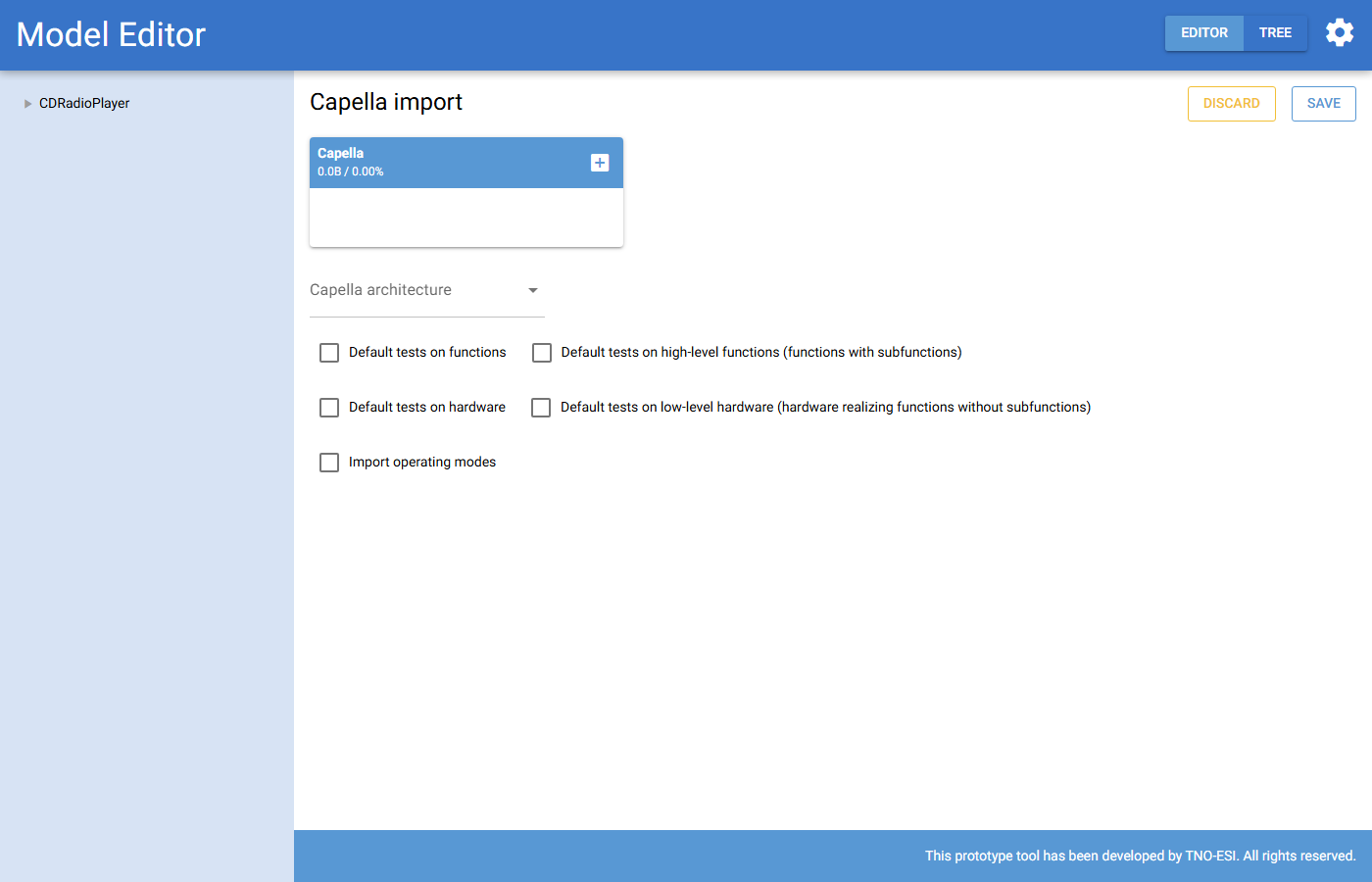
Fig. 43 The Capella import page.
On the import page:
Upload all files that make up the Capella model, for example
.aird,.capellaand.afm.Choose the Capella architecture to import: logical or physical.
Choose which tests to generate:
Default tests on functions: a test for every function;
Default tests on high-level functions: a test for every function with subfunctions;
Default tests on hardware: an inspection test for every hardware node;
Default tests on low-level hardware: an inspection test for hardware that realizes functions without subfunctions.
You do not need these options for elements that are already annotated as tests or as inspectable in Capella (see below).
Choose whether to import operating modes.
Press Save. Save is only enabled after you upload files and choose an architecture.
If a name already exists in the target cluster, _1 is added to the
imported name. After the import, check the model and
import the CPTs if you have them.
The example projects contain annotated Capella models (Capella 7.0) and CPTs that you can import.
Note
Some modelling features are only available with a Capella import. The editor cannot create them. The main example is error reporting chains (observed errors). The editor focuses on refining models, and the project focuses on developing the methodology rather than the tool.
Diagnostic annotations
Capella has no built-in diagnostic information. You add it as property values with the Capella add-on PVMT (Property Values Management Tools):
Install PVMT in Capella. The built-in help of Capella explains how to use it.
Import the MBDlyb property domain
MBDlyb.vpd. You find it in the foldercapella-extensionof the MBDlyb repository.
The PVMT editor then shows the MBDlyb domain with its property groups and default values:
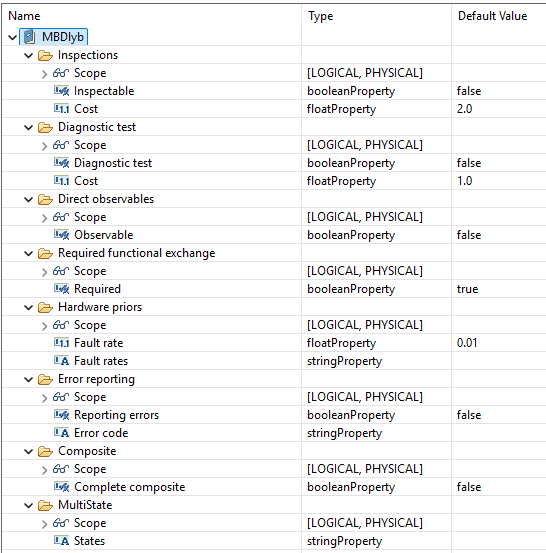
Fig. 44 The PVMT editor with the MBDlyb property domain.
The table summarizes the annotations. The sections after it describe each one.
Annotation |
Effect in MBDlyb |
|---|---|
States on a function |
Custom states. A custom CPT is then required. |
Inspectable (and Cost) on a component |
An inspection test with its result is created for the hardware. |
Complete composite on a component |
No hardware node is created for the component. Its functions are kept. |
Diagnostic test (and Cost) on a function |
The function becomes a diagnostic test. |
Observable on a function output port |
A direct observable that observes the function. |
Error code on a function output port |
An observed error that the function yields. |
Reporting errors on a function output port |
The function reports errors to the user. |
Required = false on a functional exchange |
The exchange is not imported. Use this to break cycles. |
Fault rate / Fault rates on a component |
The prior of the |
Custom states on a function
Sometimes Ok and NOk are not enough to describe the behaviour of a
function. Enter the states as a comma-separated list in the States
property (group MultiState), for example Ok, Intermittent, NOk.
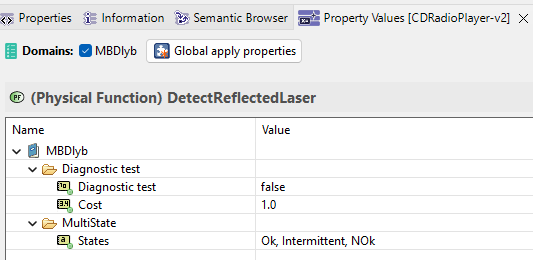
Fig. 45 Custom states on a Capella function.
Important
Custom states require a custom CPT.
Inspectable hardware
A service engineer can often inspect a component directly to see whether it is broken. To model this, set Inspectable (group Inspections) to true and enter the cost of the inspection in Cost (default 2.0).
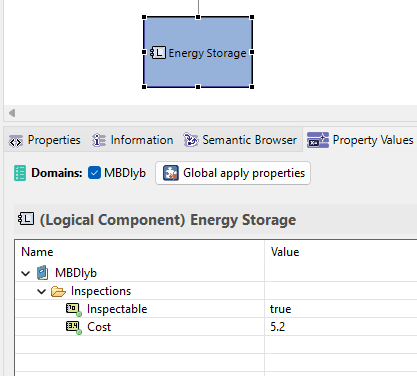
Fig. 46 A component labeled as inspectable.
The import creates an inspection test (blue hexagon) with its result (green box) for the component. It does this even when Default tests on hardware is off.
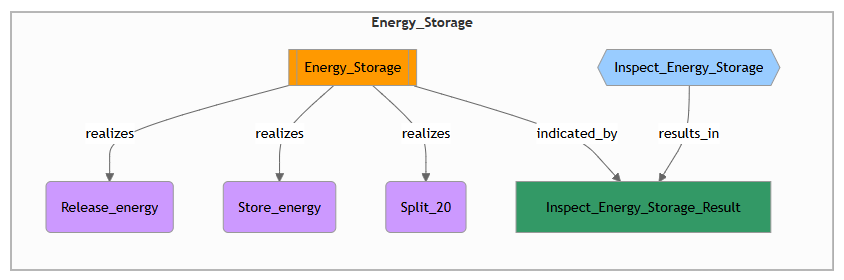
Fig. 47 The imported hardware with its inspection test.
Complete composites
Normally, every Capella component with allocated functions becomes a hardware node, so that it can be diagnosed as healthy or broken. Sometimes you do not want this. Suppose a component is responsible for a higher-level function, but its subcomponents describe it completely. There is nothing in the component that is not in a subcomponent, and the subcomponents perform all subfunctions of the higher-level function. In that case, set Complete composite (group Composite) to true.
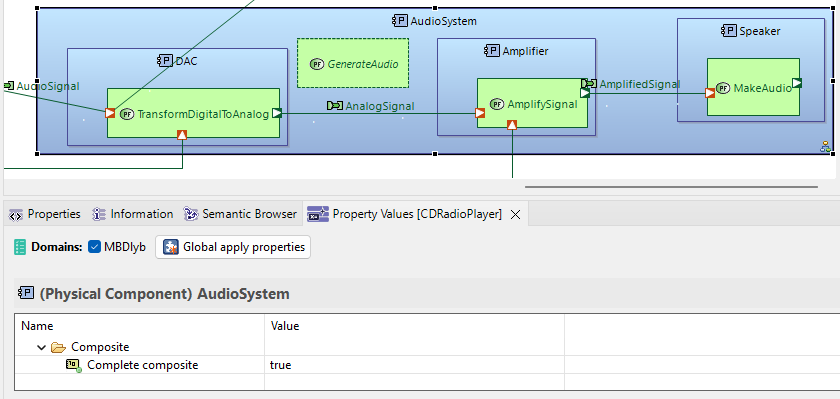
Fig. 48 A component labeled as complete composite.
The import does not create a hardware node for a complete composite, but it keeps its functions:
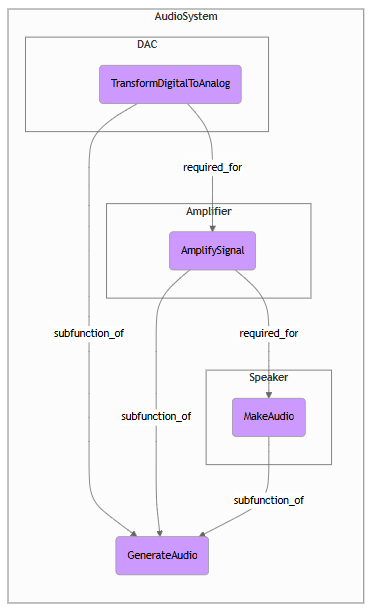
Fig. 49 A complete composite in MBDlyb: the functions are kept, but there is no hardware node for the component.
Diagnostic tests
You can define diagnostic tests in Capella:
Define a function in the logical or physical architecture that represents the test.
Set Diagnostic test (group Diagnostic test) to true, and enter the cost of the test in Cost (default 1.0).
Define subfunctions of the test and allocate them to the components that the test covers. If such a subfunction is basically the same as a regular function of the component, give it a similar name.
You can group several tests as subfunctions of a higher-level function. If that higher-level function contains only tests, it is not imported.
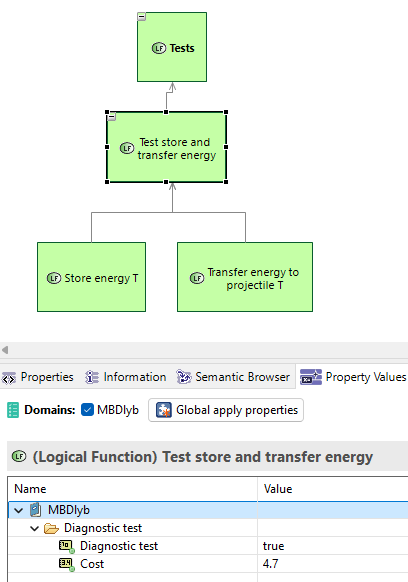
Fig. 50 A function labeled as diagnostic test.
You do not need the Default tests on functions option for these functions. They are imported as tests:
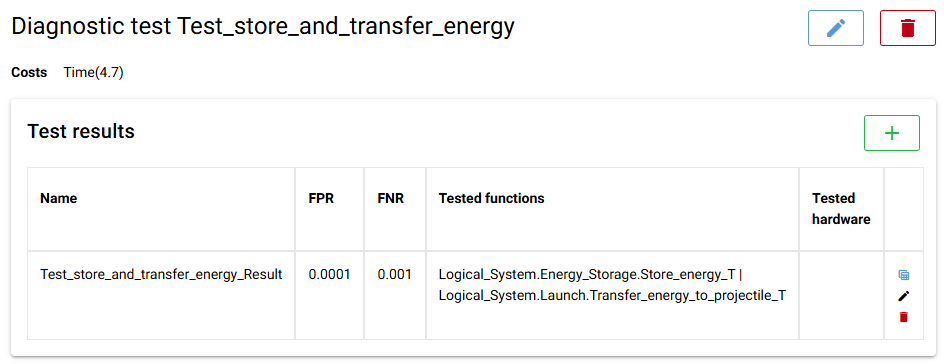
Fig. 51 The diagnostic test after the import.
Direct observables
Sometimes you can observe directly whether a function works, for example because an error message appears or not. To model this:
Add an output port to the function and give it a meaningful name.
Set Observable (group Direct observables) of the port to true.
Only one observable output per function is useful, because it only shows whether the function works.
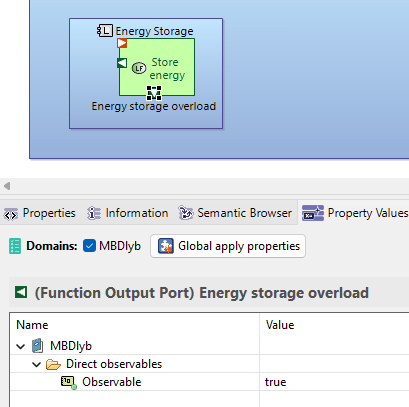
Fig. 52 A function output labeled as observable.
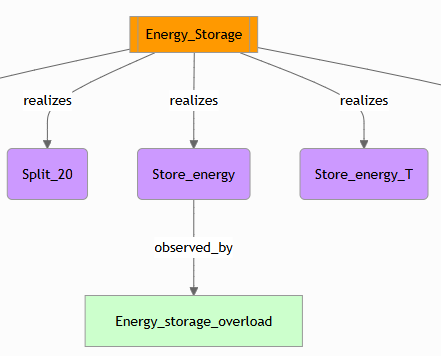
Fig. 53 The observable after the import.
Observed errors
In complex systems, the component that detects an error is often not the component that reports it to the user. MBDlyb models this with observed errors.
The function that detects (yields) the error:
Add an output port to the function. Its name does not matter.
Set Error code (group Error reporting) to the name of the error, for example
CD_ERROR.Leave Reporting errors on false. If the same function also shows the error to the user, model it as a direct observable instead. That is simpler.
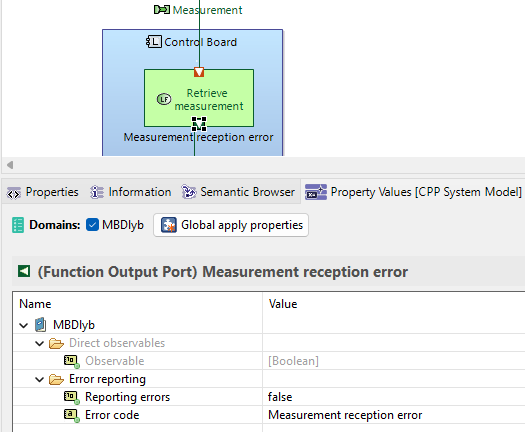
Fig. 54 A function output that yields an error.
The import shows the error as a yellow box:
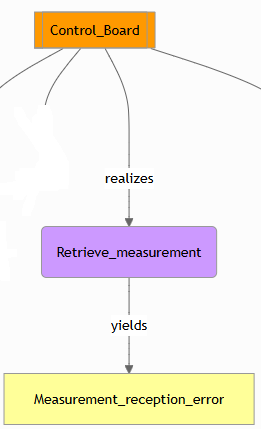
Fig. 55 The imported function that yields the error.
The function that reports the error:
Make sure that a path of functional exchanges leads from every function that yields the error to the reporting function. This path is the error chain.
Add an output port to the reporting function. You can give it a meaningful name.
Set Reporting errors (group Error reporting) to true.
Leave Error code empty to report all incoming errors here, or enter the error codes that this function reports.
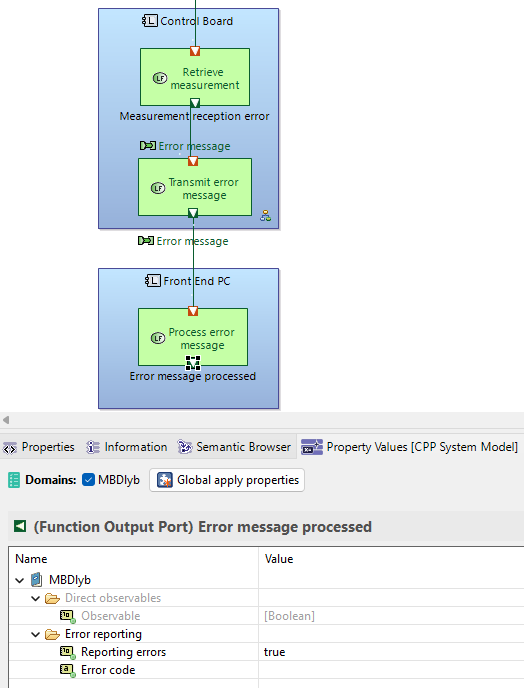
Fig. 56 A function output that reports errors.
The import shows a reports arrow from the reporting function to the error:
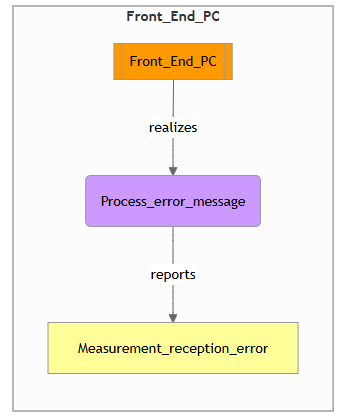
Fig. 57 The imported function that reports the error.
With a yielding function, a reporting function and an error chain between them, the The diagnoser handles the error correctly. If the error is Present, the yielding function does not work, but the functions in the chain after it do work, because they pass the error on.
Note
You cannot create or edit observed errors in the web interface yet. You can only import them from Capella.
Functional exchanges that are not required
Capella models can contain cycles of functional exchanges, for example in control loops. The probabilistic reasoning model cannot contain cycles. A cycle would also hide hardware failures. That is why MBDlyb cuts cycles automatically when it builds the reasoning model.
You can also decide where to cut a cycle yourself. Set Required (group Required functional exchange) of an exchange to false. The default is true. A good place is often the incoming exchange of a function that measures something. The measured value often depends on the function before it, but if that function is broken, the measurement itself is usually still correct, as long as the sensor hardware works.
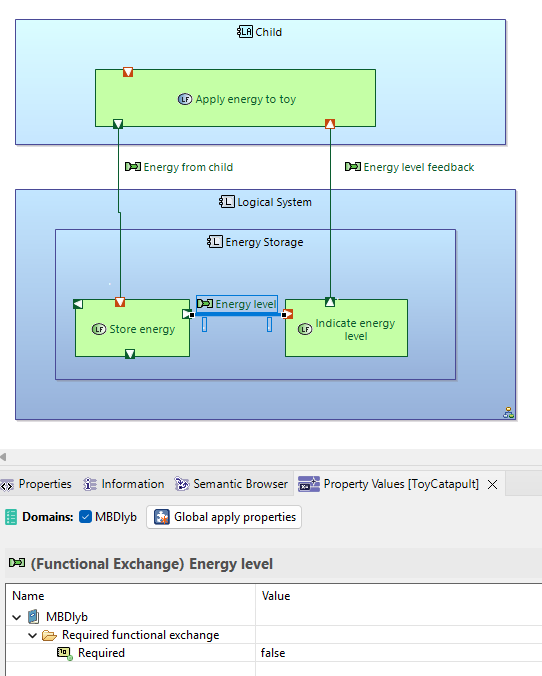
Fig. 58 A functional exchange labeled as not required.
An exchange that is not required is not imported, so it cannot cause a cycle. The validator reports any remaining cycles.
Fault rates
By default, MBDlyb gives every hardware node one fault Broken with a prior
probability of 0.01. The prior holds as long as there is no diagnostic
information. To use another value for a component, set Fault rate (group
Hardware priors):
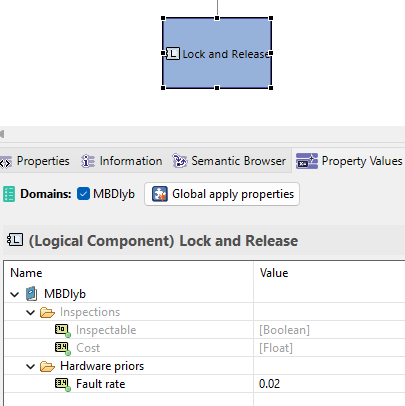
Fig. 59 A component with an explicit fault rate.
The import assigns this fault rate to the Broken fault:
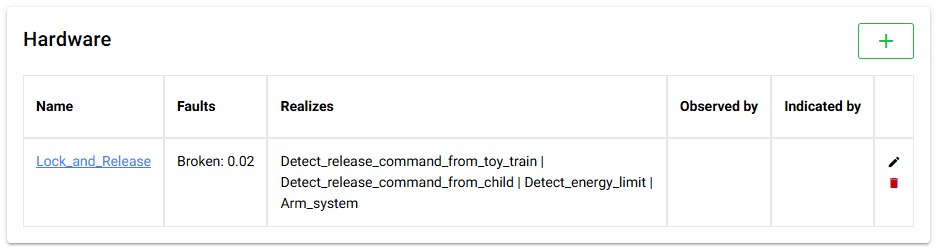
Fig. 60 The imported hardware with its fault rate.
Some components can fail in several ways or to several degrees. For these,
fill in Fault rates instead: a comma-separated list of faults, each with a
name and a prior separated by a colon. For example:
Broken: 0.015, Dusty: 0.04. If Fault rates is set, Fault rate is
ignored.
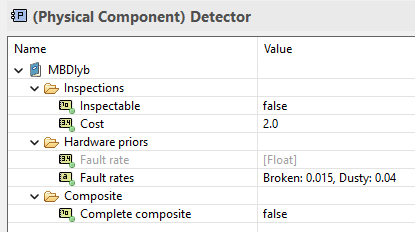
Fig. 61 Custom fault rates for the Detector component.
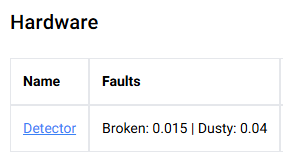
Fig. 62 The imported faults and priors.
Note
With the default CPTs, every fault has the same effect as Broken on the
functions that the hardware realizes. To give a fault a different effect,
for example a dusty detector that makes detection intermittent, define a
custom CPT for those functions.