Installation and start-up
Requirements
Python 3.13
A running Neo4j database (version 5) with the APOC plug-in installed
The matching MBDlyb package (
mbdlyb0.6.0)
Installing the interface
Install the UI wheel and its matching MBDlyb wheel together in an isolated environment. Then the installer can resolve the dependencies of both. With uv:
uv venv --python 3.13
uv pip install /path/to/mbdlyb-0.6.0.whl /path/to/mbdlyb_ui-<version>-py3-none-any.whl
With pip:
python -m venv .venv
# Windows PowerShell: .venv\Scripts\Activate.ps1
# macOS/Linux:        source .venv/bin/activate
python -m pip install /path/to/mbdlyb-0.6.0.whl /path/to/mbdlyb_ui-<version>-py3-none-any.whl
Pre-built MBDlyb packages are available from the
MBDlyb GitHub releases.
Developers working from a source checkout can run uv sync in the
repository root. See the project README.md for details.
Setting up Neo4j
Neo4j stores the models. You can download Neo4j Desktop from https://neo4j.com/. In Neo4j Desktop:
Create a project with New → Create project.
Add a database server to the project with Add → Local DBMS. Give it a name and a password, and choose a 5.x version. The interface uses the password
passwordby default, so this is the easiest choice to start with.Select the DBMS, open the Plugins tab in the panel on the right and install APOC. The interface uses APOC, for example to copy clusters.
Start the DBMS.
Create a database, for example
example-db. Open the drop-down menu of the DBMS and choose Create database.
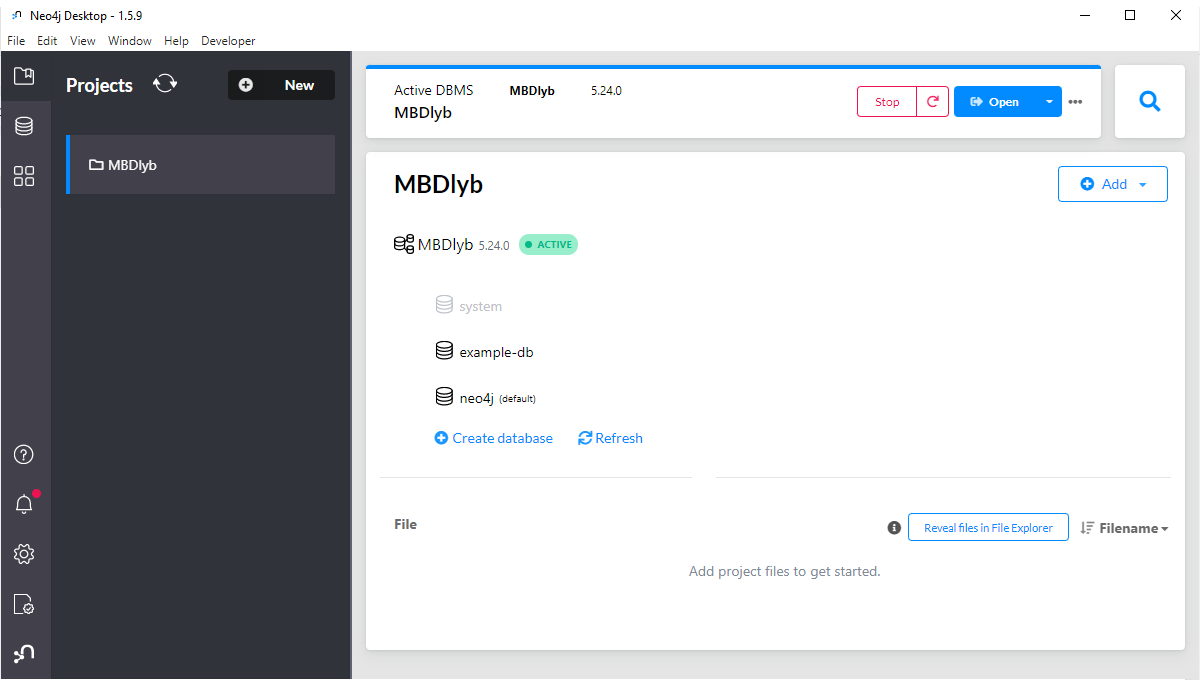
Fig. 3 Neo4j Desktop with the project MBDlyb, a running DBMS and the
database example-db.
Important
The DBMS must be running whenever you use the interface. After a restart of your computer, select the project and the DBMS in Neo4j Desktop and click Start again.
Importing and exporting databases
Neo4j can dump a database to a file and import that file again. Use this to make backups, to share models, or to load the example projects.
To export a database:
Open the menu (three dots) of the database in Neo4j Desktop.
Choose Dump. The dump file appears in the File section of the project.
To import a dump file:
Add the dump file to the project with Add → File.
Open the menu (three dots) of the file and choose Import dump into existing DBMS.
Select the DBMS, give the new database a name, and click Create.
Start the interface with this database name (see below).
Starting the interface
Start the interface with the name of the Neo4j database that you want to use:
mbdlyb-ui --database example-db
Then open http://localhost:8080/ in a browser. The interface does not open a browser automatically.
The following options configure the connection to Neo4j:
Option |
Default |
Meaning |
|---|---|---|
|
|
Hostname of the Neo4j server |
|
|
Port of the Neo4j server |
|
|
Protocol used to connect to Neo4j |
|
|
Neo4j user name |
|
|
Neo4j password |
|
(server default) |
Name of the Neo4j database to use |
Note
One running interface serves one database. Settings such as the editor mode are stored on the server, so they are shared by everyone who uses that instance.