Building and editing models
This chapter describes how to create and change model elements in Editor mode. For the meaning of the elements and relations, see What is being modelled.
Tip
You do not have to build a model by hand. Usually you import a Capella model first and use the editor to refine it. For a guided example of building a model from scratch, see Tutorial: building a model from scratch.
Note
The editor does not support every modelling construct. Error reporting chains (functions that report error codes through other functions) can only be created through a Capella import. The project focuses on the methodology rather than on tooling, so the editor is meant for refining models and for small examples.
Common principles
Create an element or relation with
 in the header of a table.
Every form has Discard and Save buttons. Nothing is written to the
database until you press Save.
in the header of a table.
Every form has Discard and Save buttons. Nothing is written to the
database until you press Save.Edit with
 in the page toolbar, or
  on a table
row.
on a table
row.Delete with
 or
or  . You always have to
confirm a deletion. Deleting an element also deletes its relations.
Deleting a cluster also deletes everything inside it.
. You always have to
confirm a deletion. Deleting an element also deletes its relations.
Deleting a cluster also deletes everything inside it.Names must be unique within their cluster and must be valid identifiers. The form shows an error message when a name is not allowed.
Weights are numbers between 0 and 1 (default 1). See Relation weights.
Clusters
The cluster page is the main page of the editor. It shows the diagram of the cluster (if enabled) and tables of all elements directly in the cluster.
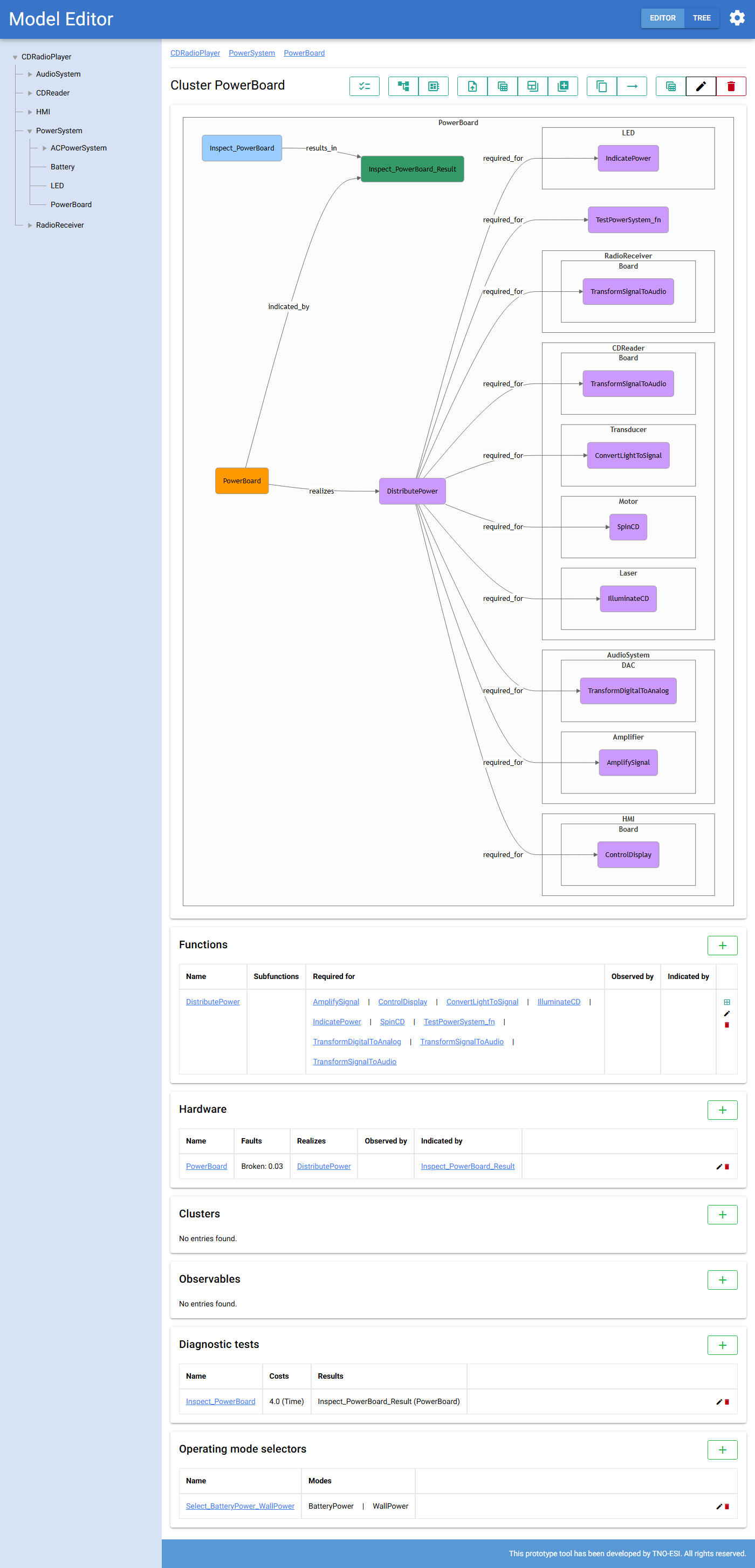
Fig. 22 The cluster page of PowerSystem.PowerBoard. It shows the diagram,
functions, hardware, observables, tests and the operating mode selector of
the cluster.
The cluster page has these tables:
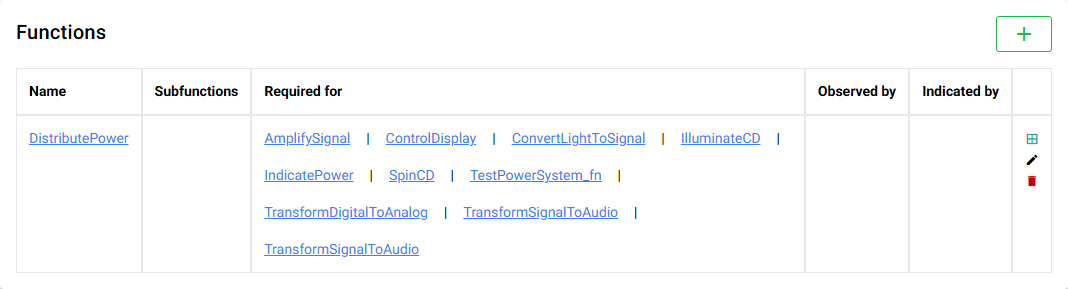
- Functions
With their subfunctions, the functions they are required for, and their observables and test results.
- Hardware
With faults, realized functions, observables and test results. Root clusters cannot contain hardware.

- Clusters
The subclusters.
- Observables
The direct observables, with their FPR and FNR.
- Diagnostic tests
The tests, with their total cost and their results.
- Operating mode selectors
The selectors with their operating modes.

Creating a cluster
Create a root cluster (a new model) from the landing page. Create a subcluster
with in the Clusters table.
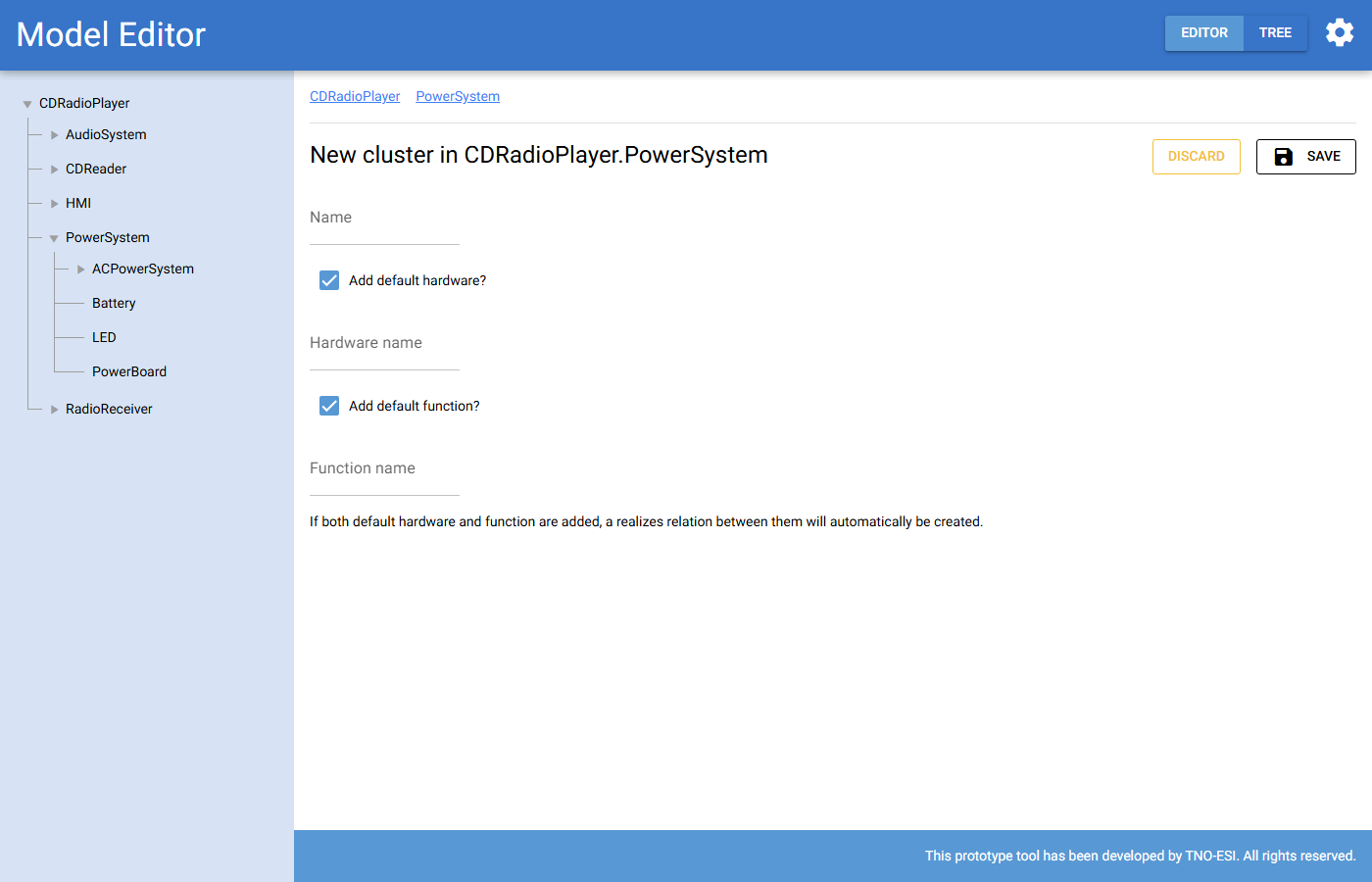
Fig. 23 Creating a subcluster. You can create a default hardware node and a default function together with the cluster.
For a subcluster you can also create:
a default hardware node, which by default gets the name of the cluster;
a default function, named
MainFunctionby default.
When you create both, the hardware automatically realizes the function. This gives you the common “one component, one cluster” pattern in one step.
Use in the toolbar to rename a cluster.
Copying, moving and deleting clusters
 Copy cluster
Creates a copy of the cluster, including all its contents and the relations inside it, in the same parent. The copy gets a unique name, with
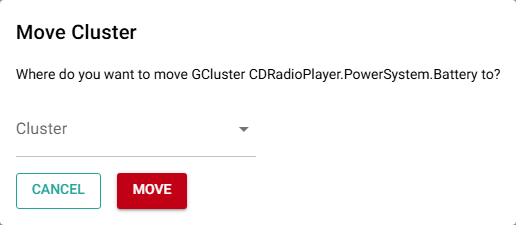
_1added if needed. Relations to elements outside the cluster are not copied. Move cluster
Moves a (non-root) cluster to another parent cluster in the same model.
- Delete cluster
Deletes the cluster and everything inside it, after confirmation.
The required-for matrix
 shows all required for relations between the functions of
the direct subclusters of a cluster. Use it to get an overview of a subsystem
and to edit relations quickly.
shows all required for relations between the functions of
the direct subclusters of a cluster. Use it to get an overview of a subsystem
and to edit relations quickly.
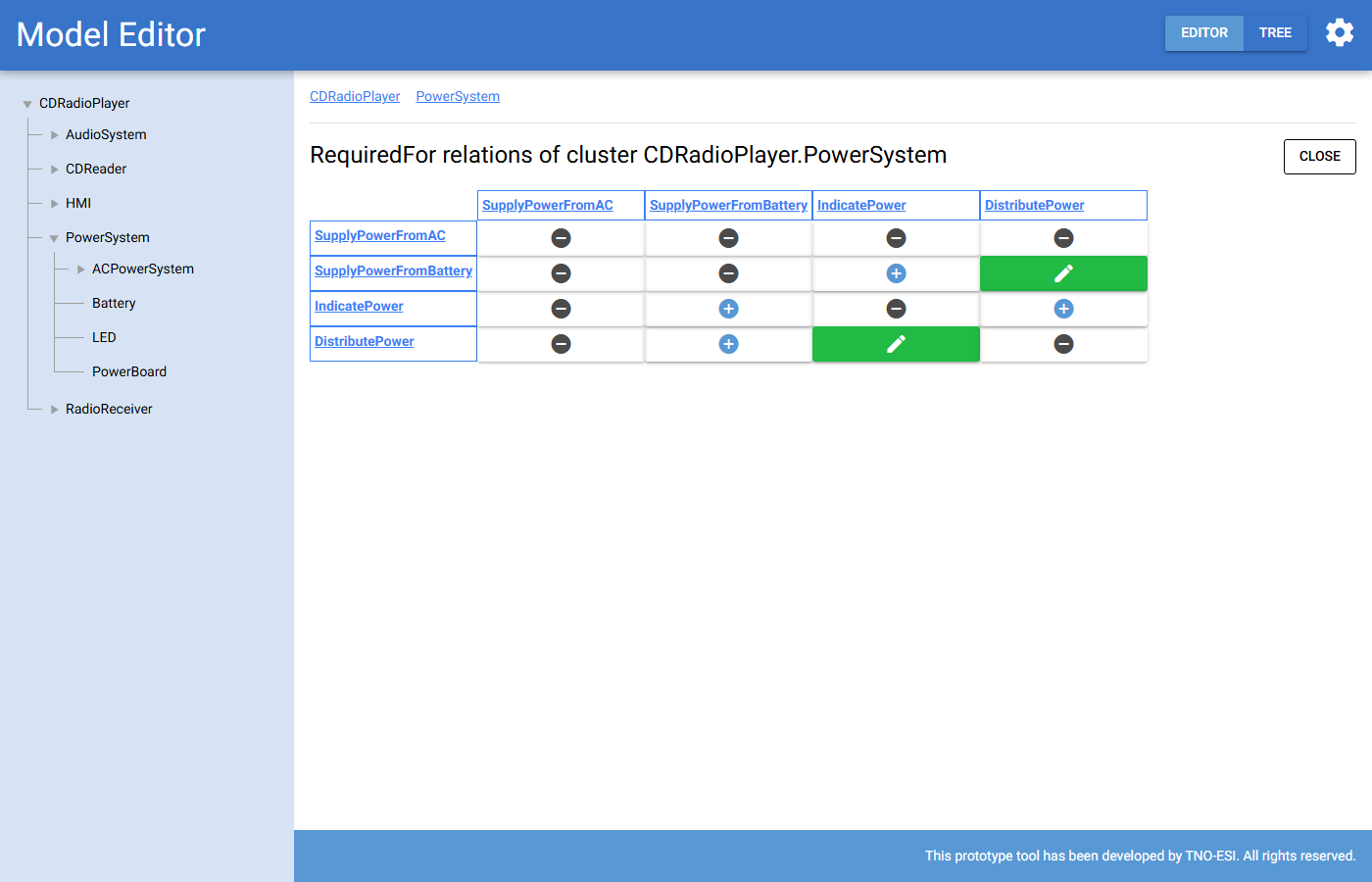
Fig. 24 The required-for matrix of PowerSystem. For example,
SupplyPowerFromBattery is required for DistributePower.
Each cell shows whether the function in the row is required for the function in the column:
a green pencil: the relation exists. Click it to edit it;
a blue plus: no relation yet. Click it to create the relation directly with weight 1;
an orange construction icon: the relation exists, but one of the functions has subfunctions. Click it to repair the relation, that is, to replace it with relations between leaf subfunctions;
a grey minus: no relation possible, for example from a function to itself.
Functions
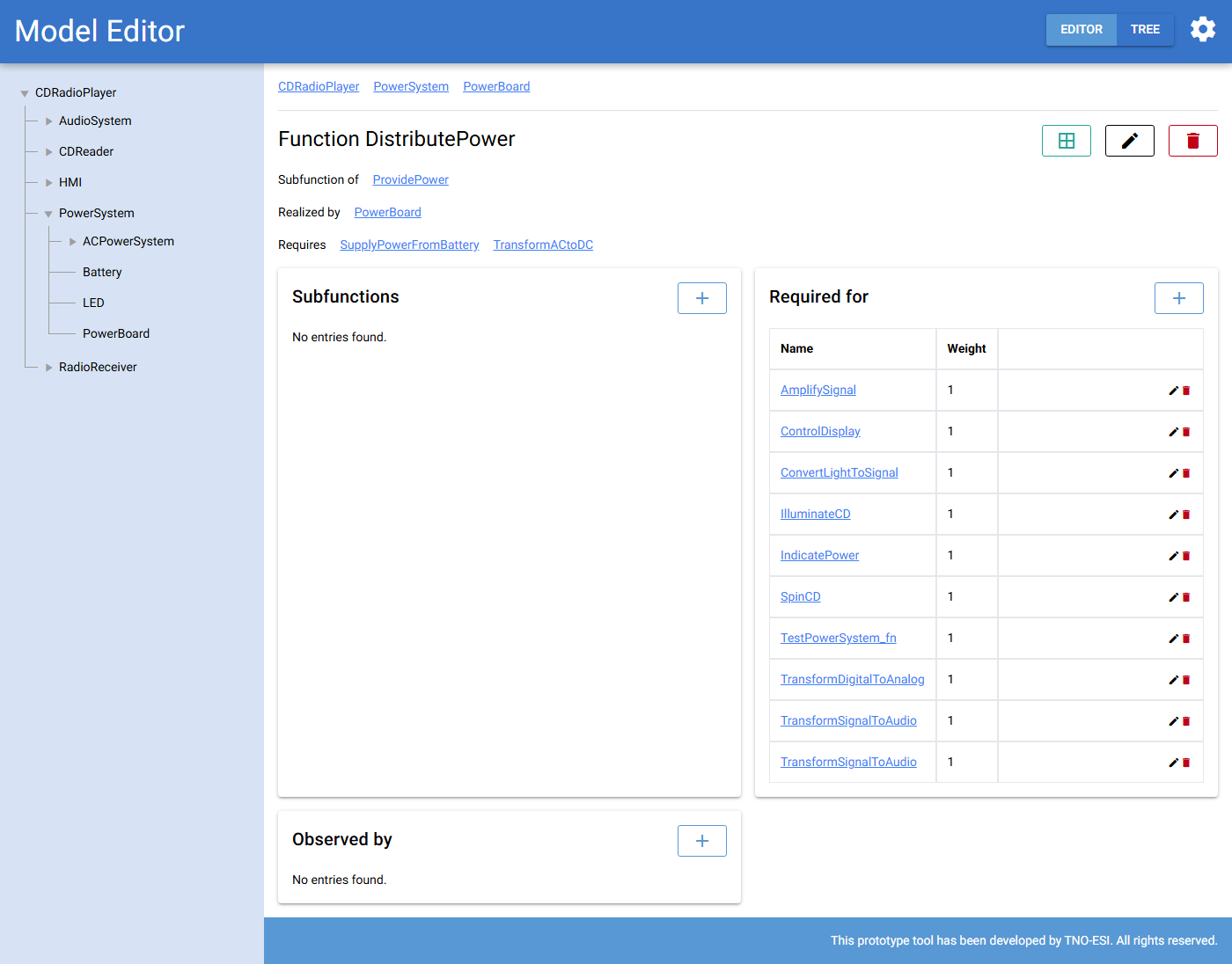
Fig. 25 The page of a function. It lists its custom states, what it is a subfunction of, what realizes it, what it requires and what it is indicated by, followed by tables of subfunctions, functions it is required for, and observables.
To create a function, use in the Functions table of a cluster.
Enter a name and, if needed, custom states. Leave the states table empty to
use the default states Ok/NOk.
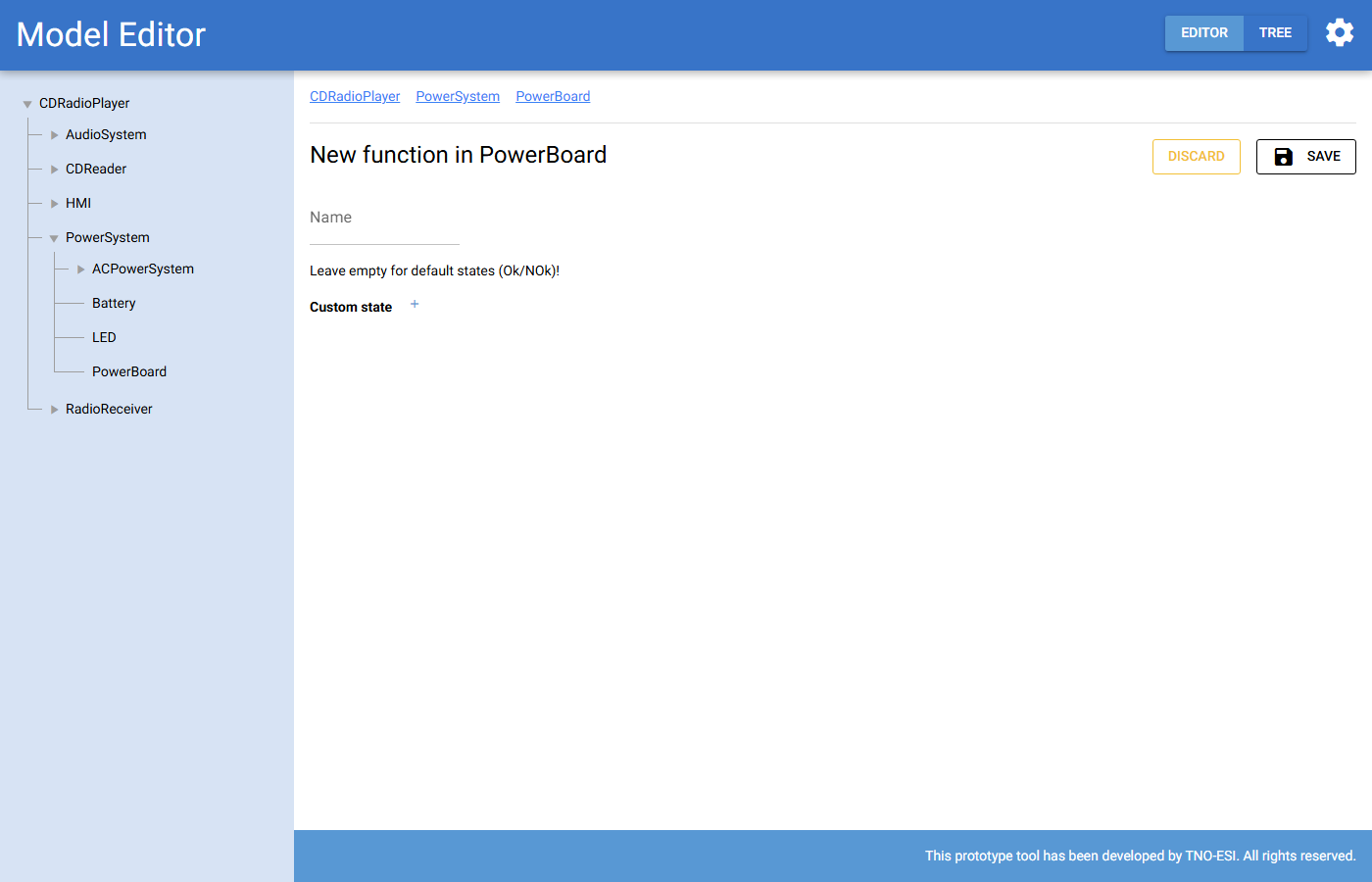
Fig. 26 Creating a function.
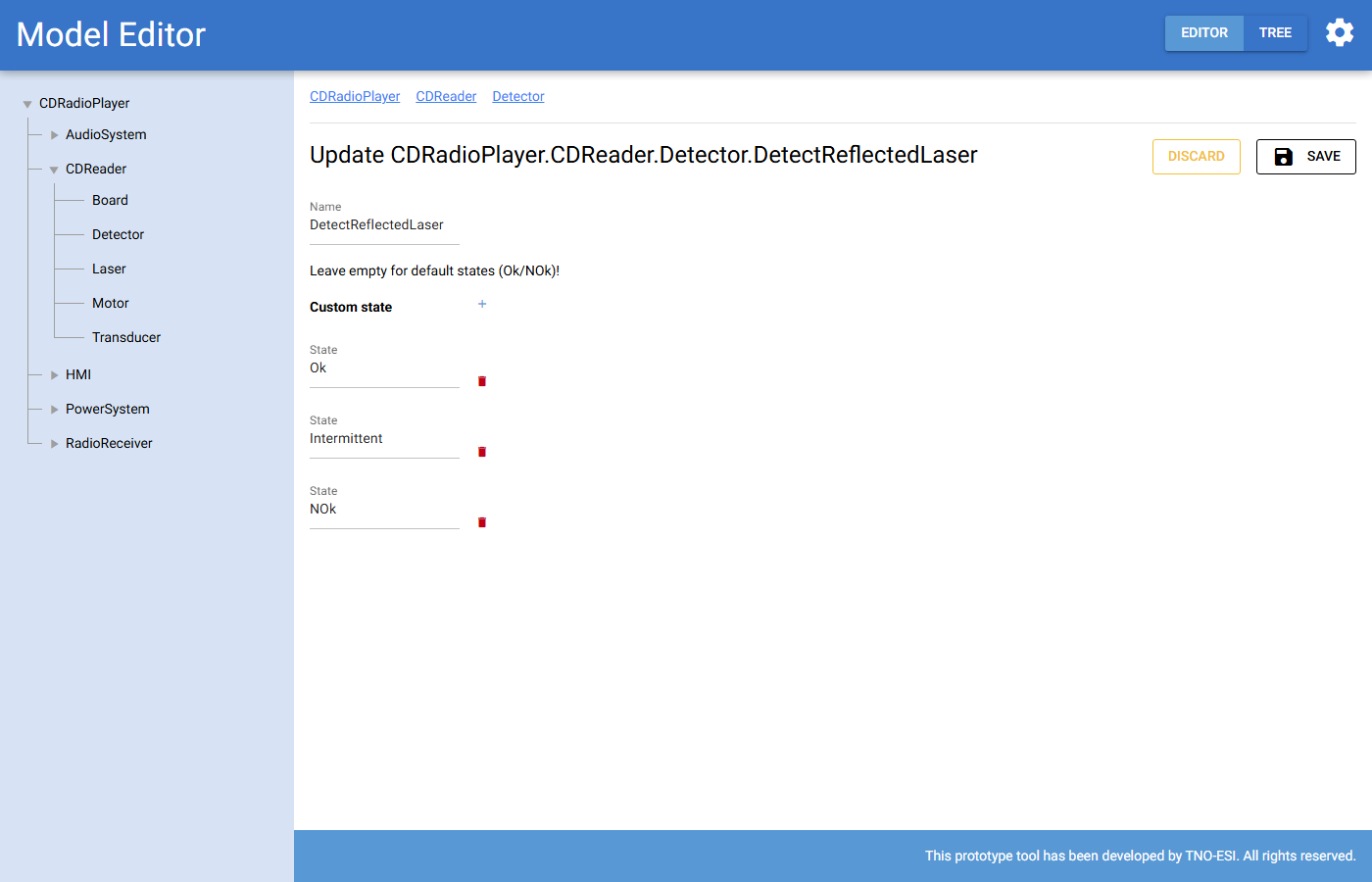
Fig. 27 Editing a function with the custom states Ok, Intermittent and
NOk. Adding custom states makes a custom CPT required.
Subfunctions
In the Subfunctions table of a function, makes another function a
subfunction of this function. You can pick any function in the cluster of the
function or in its subclusters.
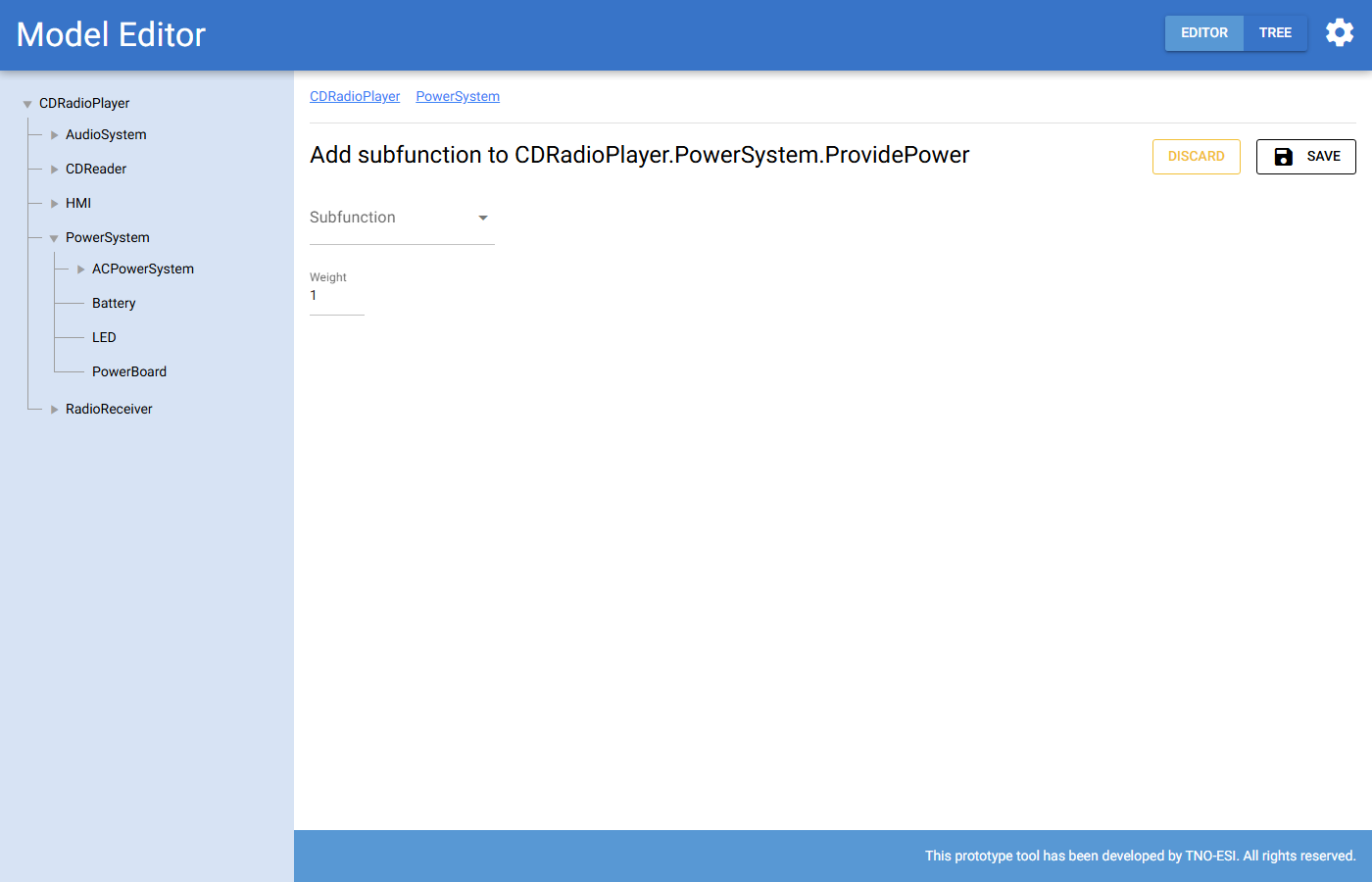
Fig. 28 Adding a subfunction with a weight.
Required for
In the Required for table, adds a function that depends on
this function. Choose:
the dependent function: any leaf function in the model;
the operating mode(s) in which the dependency holds. Leave this empty if the dependency always holds;
the weight.
The operating modes you can choose come from the operating mode selectors in the cluster of either function, or in one of the parent clusters of those clusters. So place a selector in a cluster that contains every function whose dependencies it switches. The list is built when the form opens. For a new relation it only shows the modes available to this function. To use a mode that only the dependent function can see, save the relation first and then edit it.
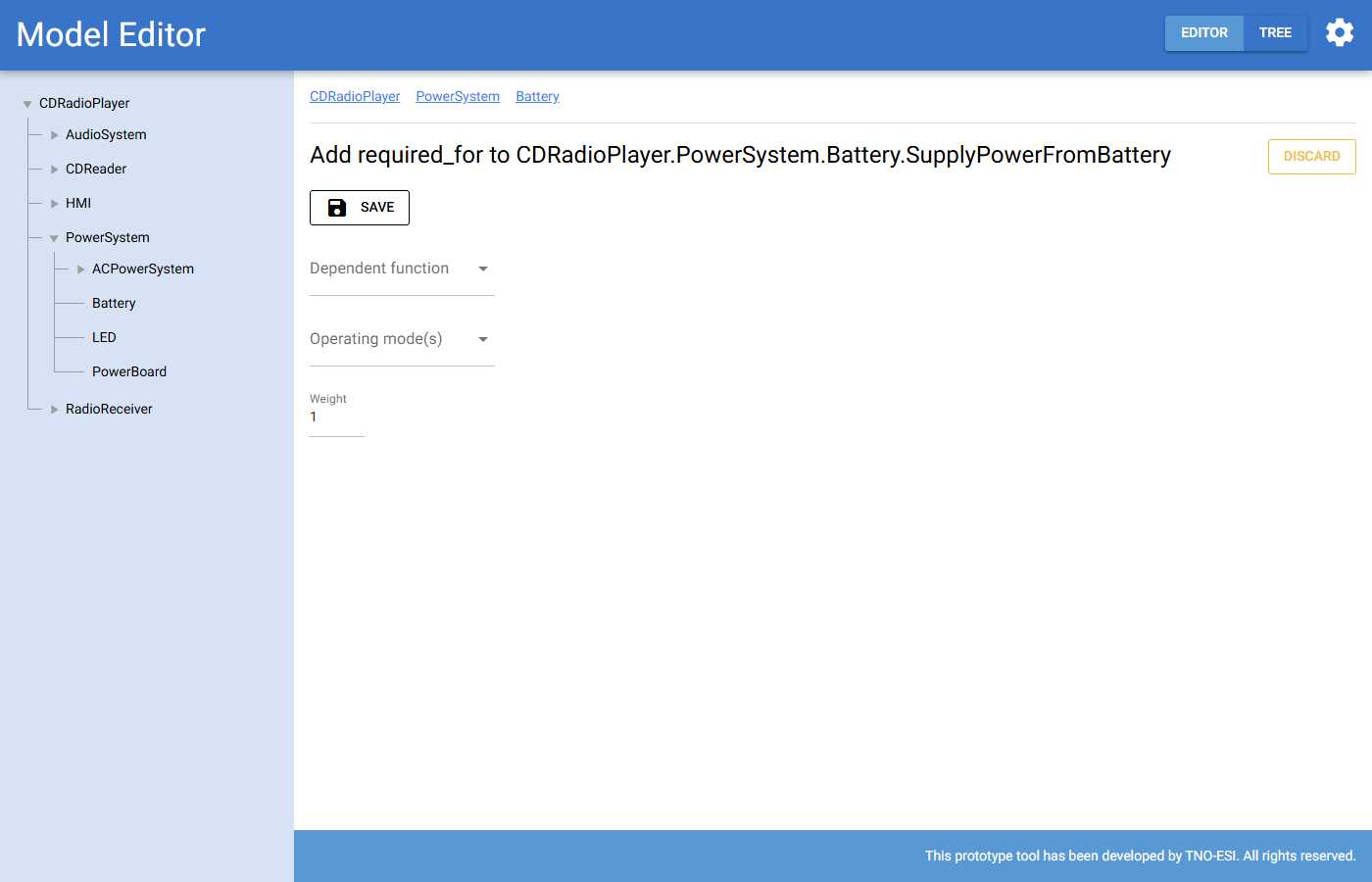
Fig. 29 Adding a required for relation.
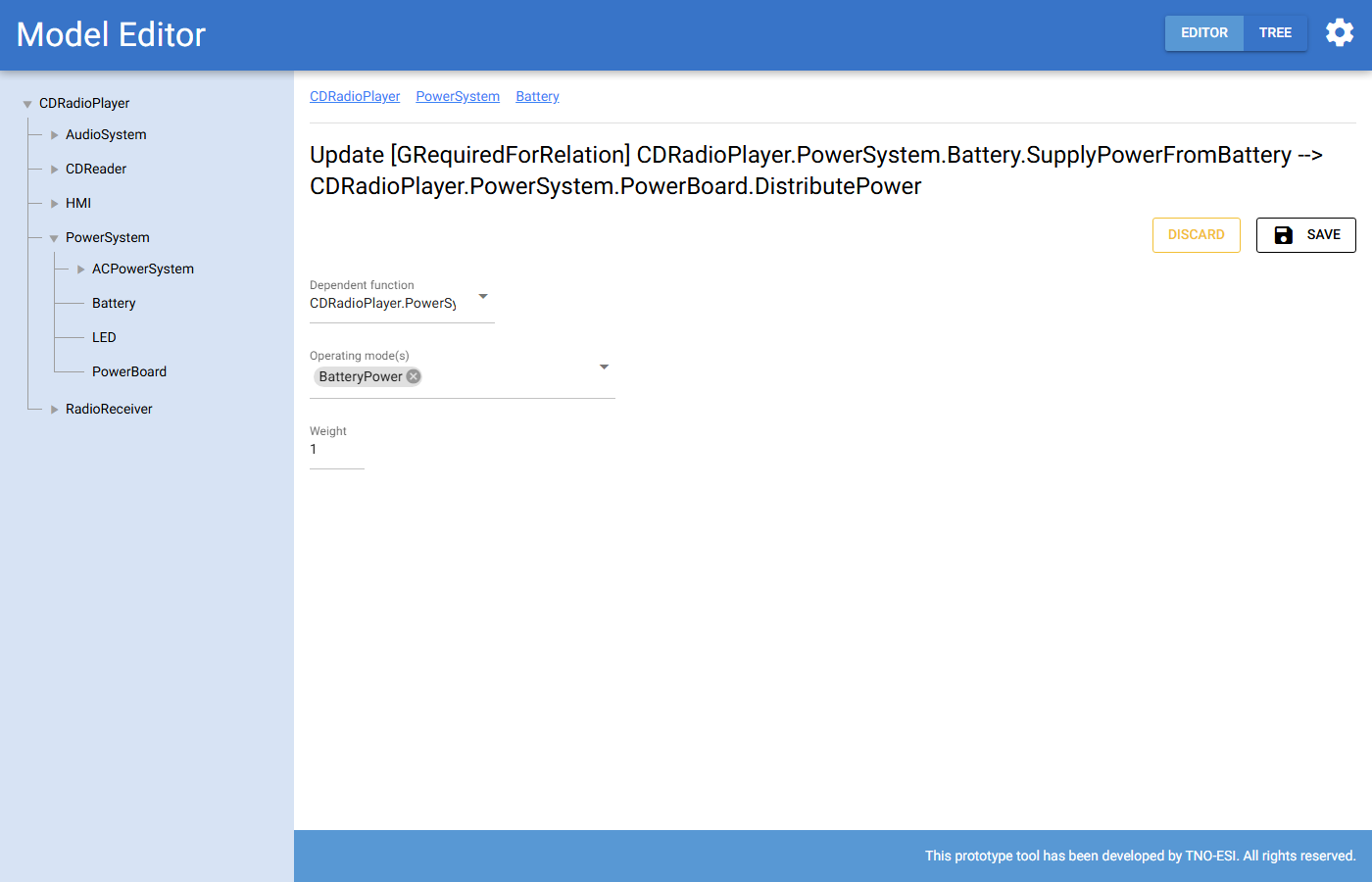
Fig. 30 A relation that only holds in the operating mode BatteryPower.
The Required for table is hidden for composite functions without such relations, because required-for relations must connect leaf functions.
Observed by
In the Observed by table, connects the function to a direct
observable in the same cluster or a parent cluster, with a weight.
Hardware
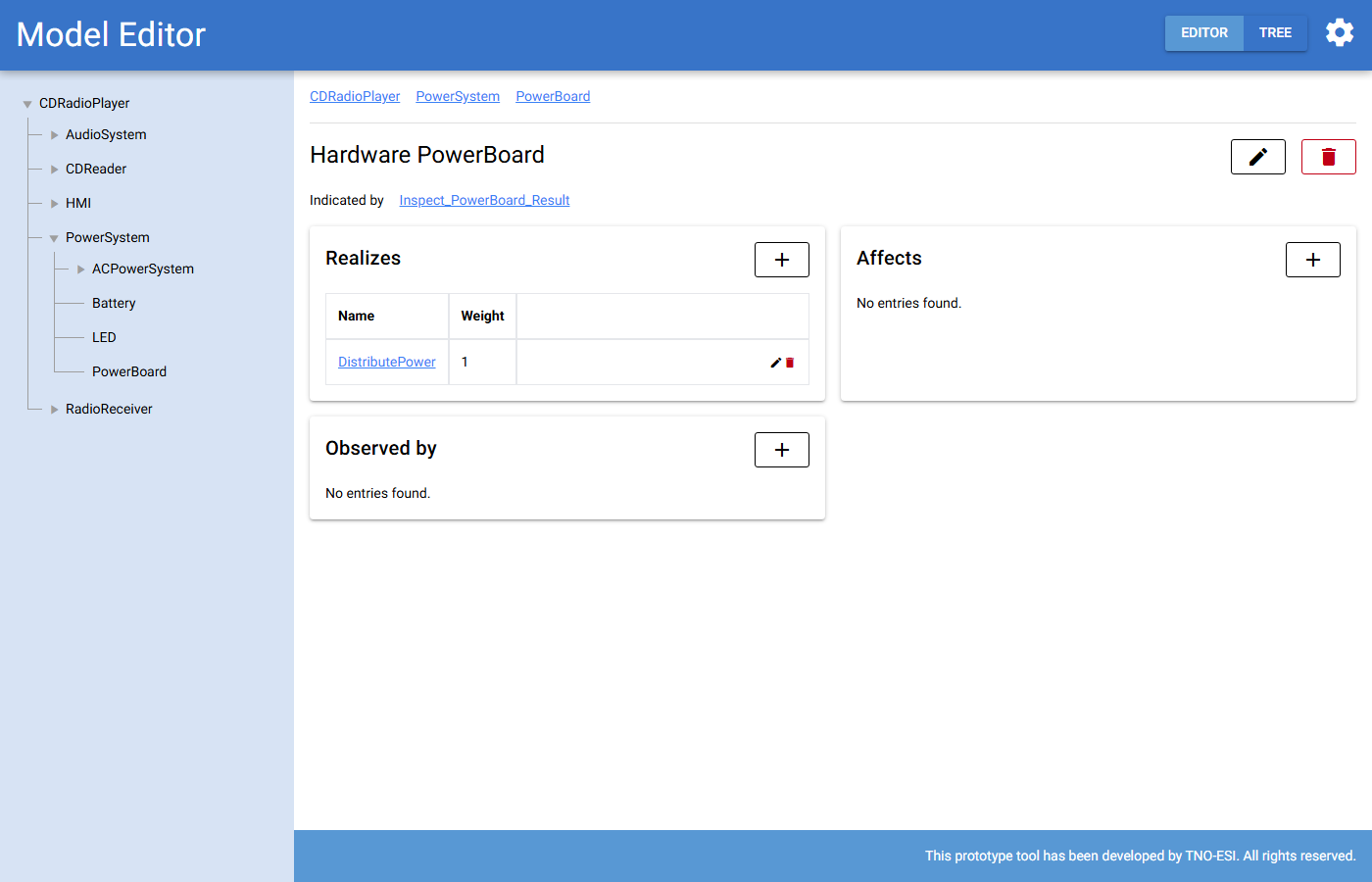
Fig. 31 The page of hardware CDReader.Detector, with tables of the functions it
realizes or affects, and the observables that observe it.
When you create or edit hardware, you define its faults and their
priors. The default is one fault Broken with prior 0.01. Use the
plus button to add a fault and the bin icon to remove one. The sum of the
priors should stay below 1.
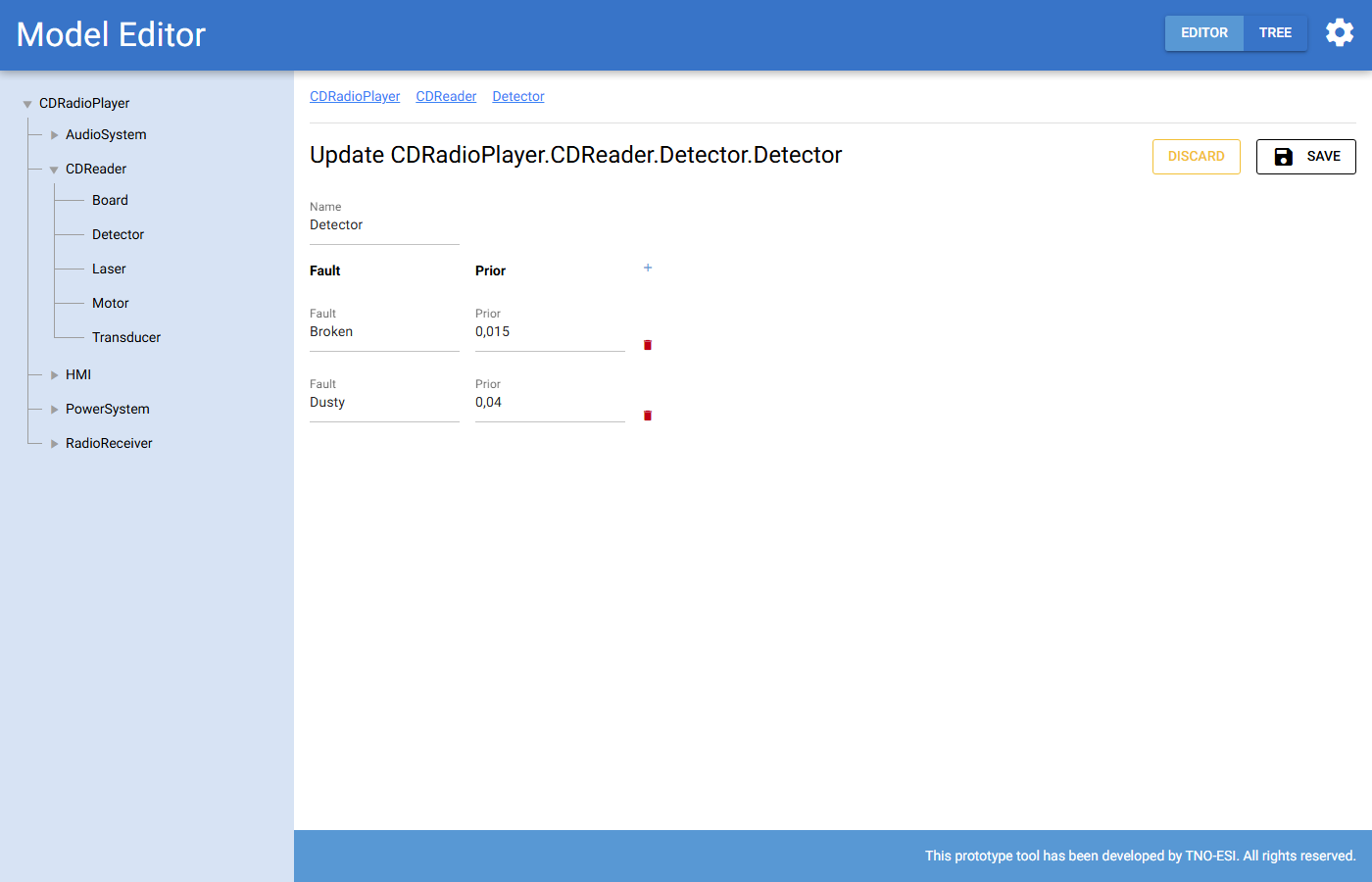
Fig. 32 The Detector hardware with two faults: Broken and Dusty.
Realizes and affects
In the Realizes table, connects the hardware to a function it
performs. In the Affects table, you connect it to a function in another
cluster that it disturbs as a side-effect. Both relations have a weight.
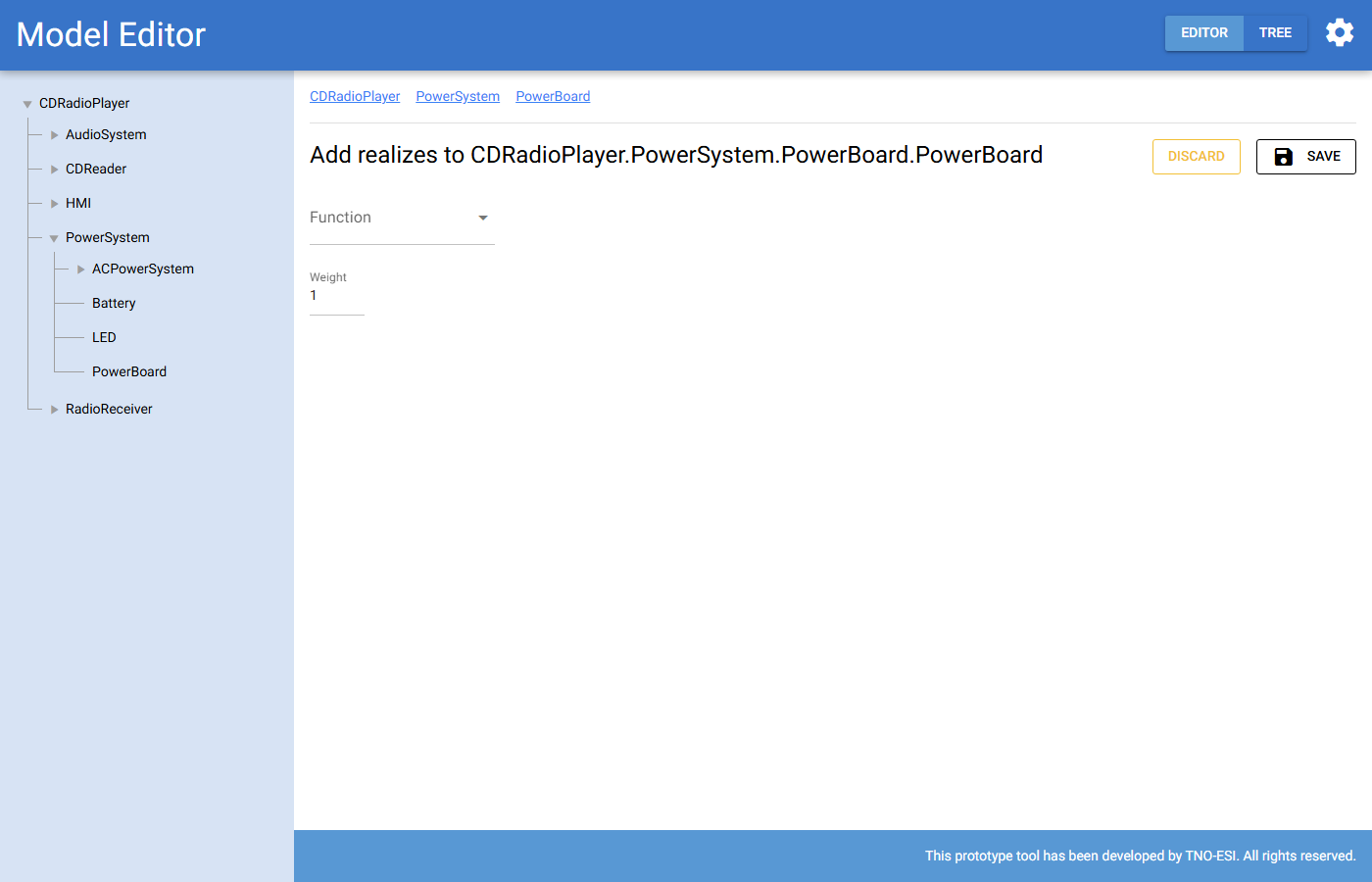
Fig. 33 Adding a realizes relation.
Observables
Create a direct observable with in the Observables table of a
cluster. Enter a name, a false positive rate and a false negative rate. Then
connect functions or hardware to it with their Observed by tables.
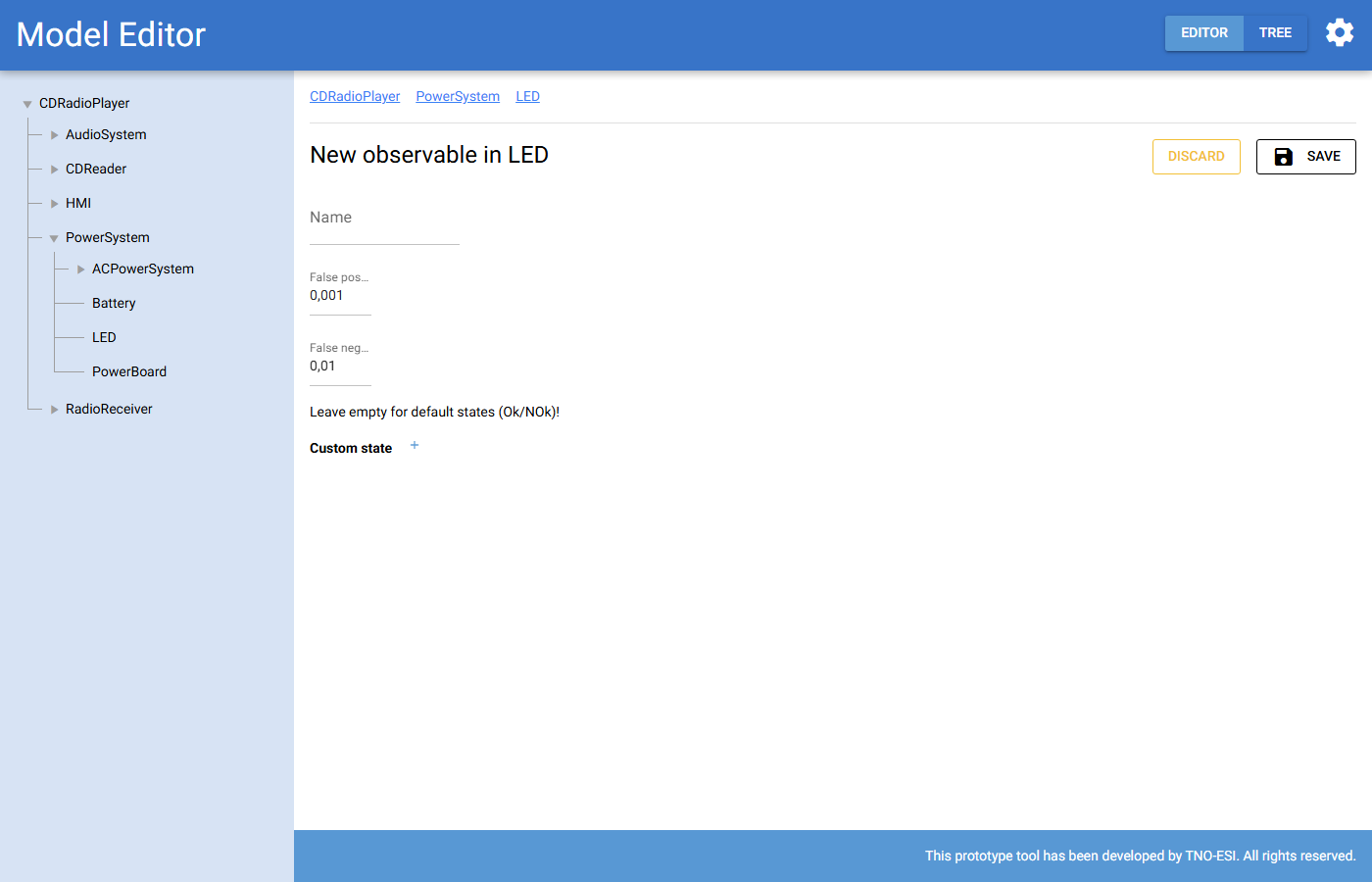
Fig. 34 Creating a direct observable.
An observable can be moved one cluster up with the move up button on its page. This is available when it is not in the root cluster or in a direct child of the root. You need this, for example, when it must observe functions in sibling clusters.
Diagnostic tests and test results
Create a test with in the Diagnostic tests table of a cluster.
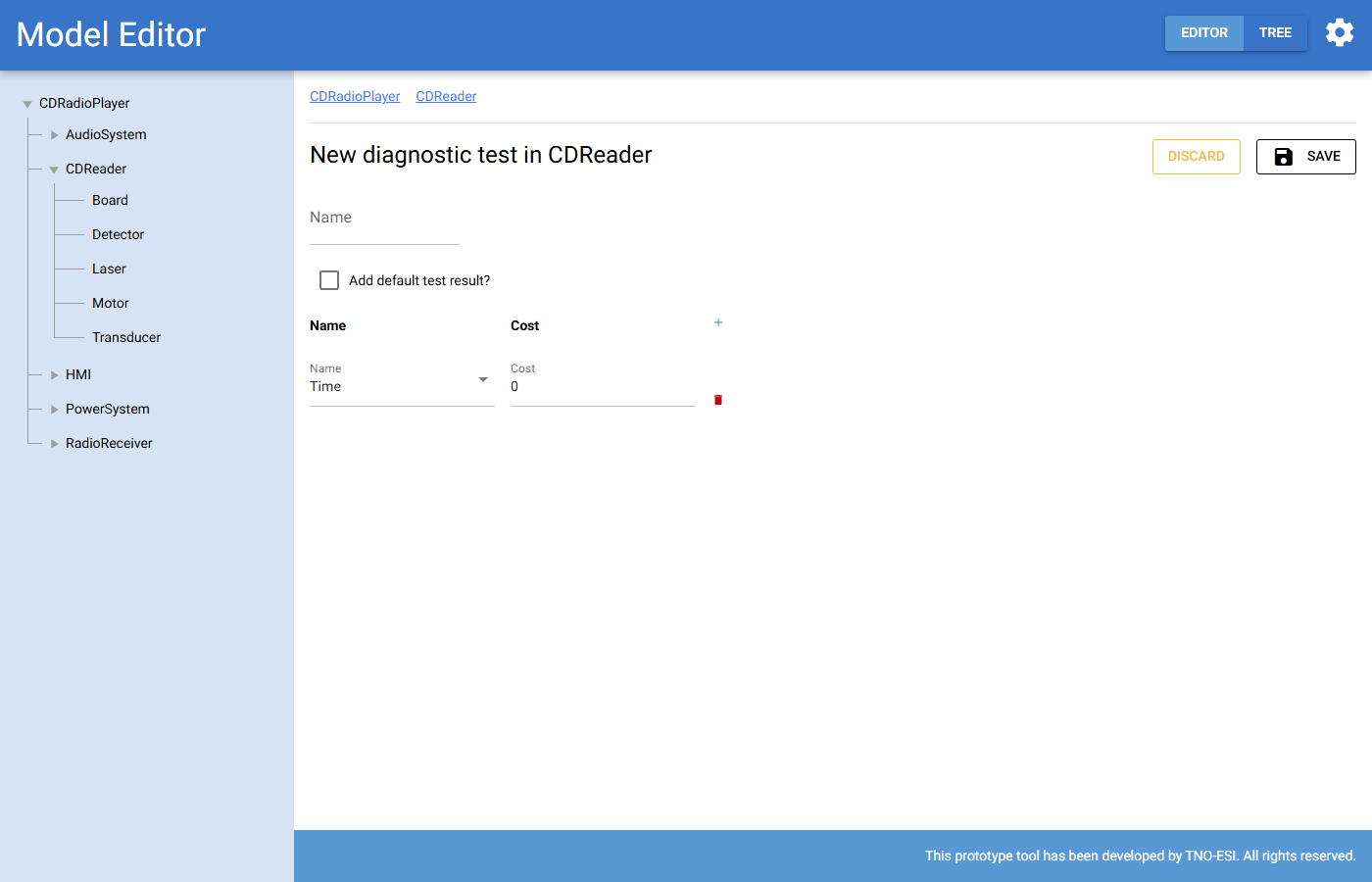
Fig. 35 Creating a test. You can create a default test result together with it.
Name of the test.
Add default test result? Creates a result named
<test>_Resulttogether with the test.Costs: one or more named cost types (for example Time) with their values. The total cost of the test is the sum.
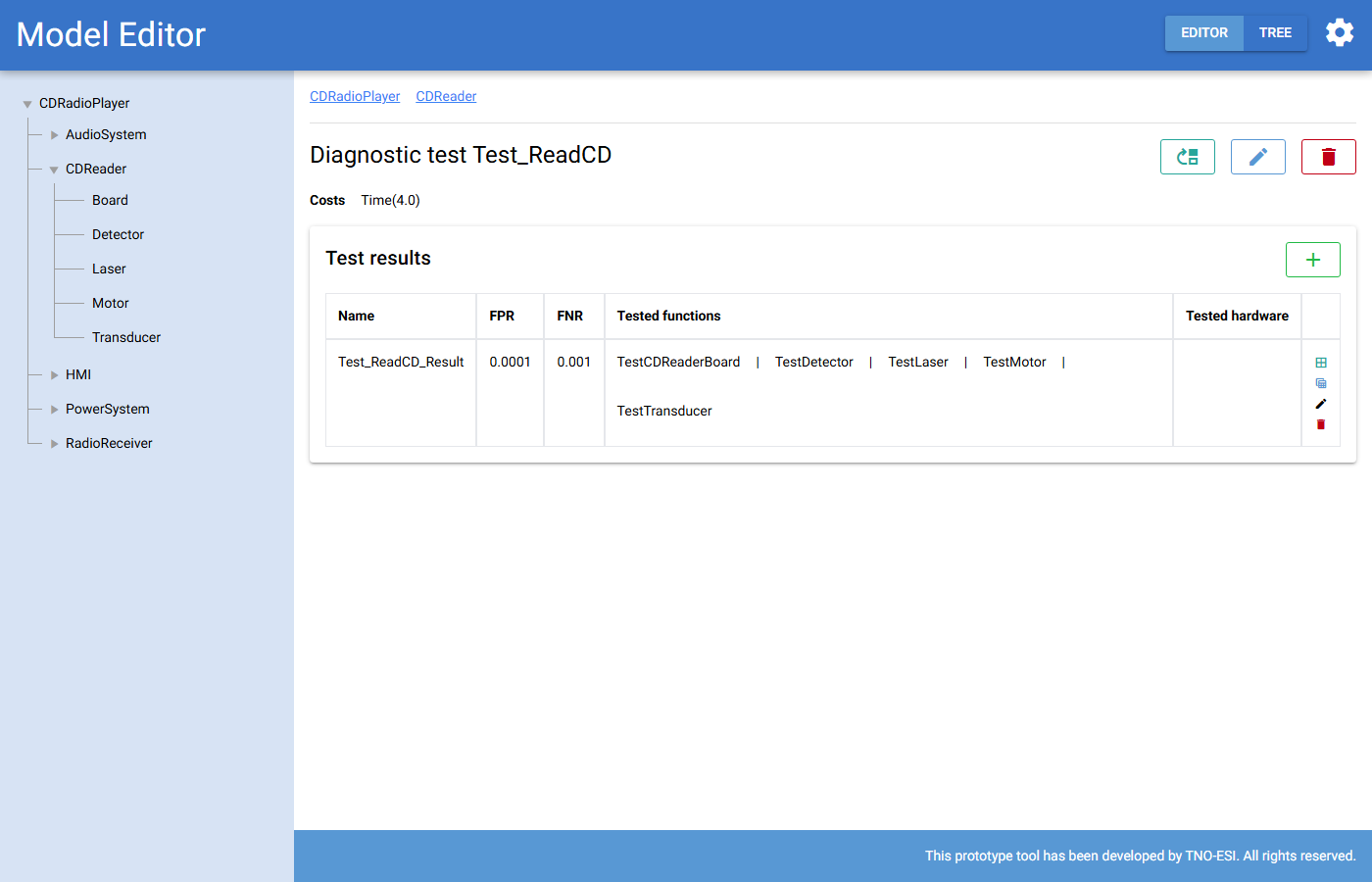
Fig. 36 The page of a test with its results. Each result row has buttons for its CPT, its tested items, editing and deleting.
On the test page you manage its test results. For each result you can set the name, the FPR, the FNR and custom states:
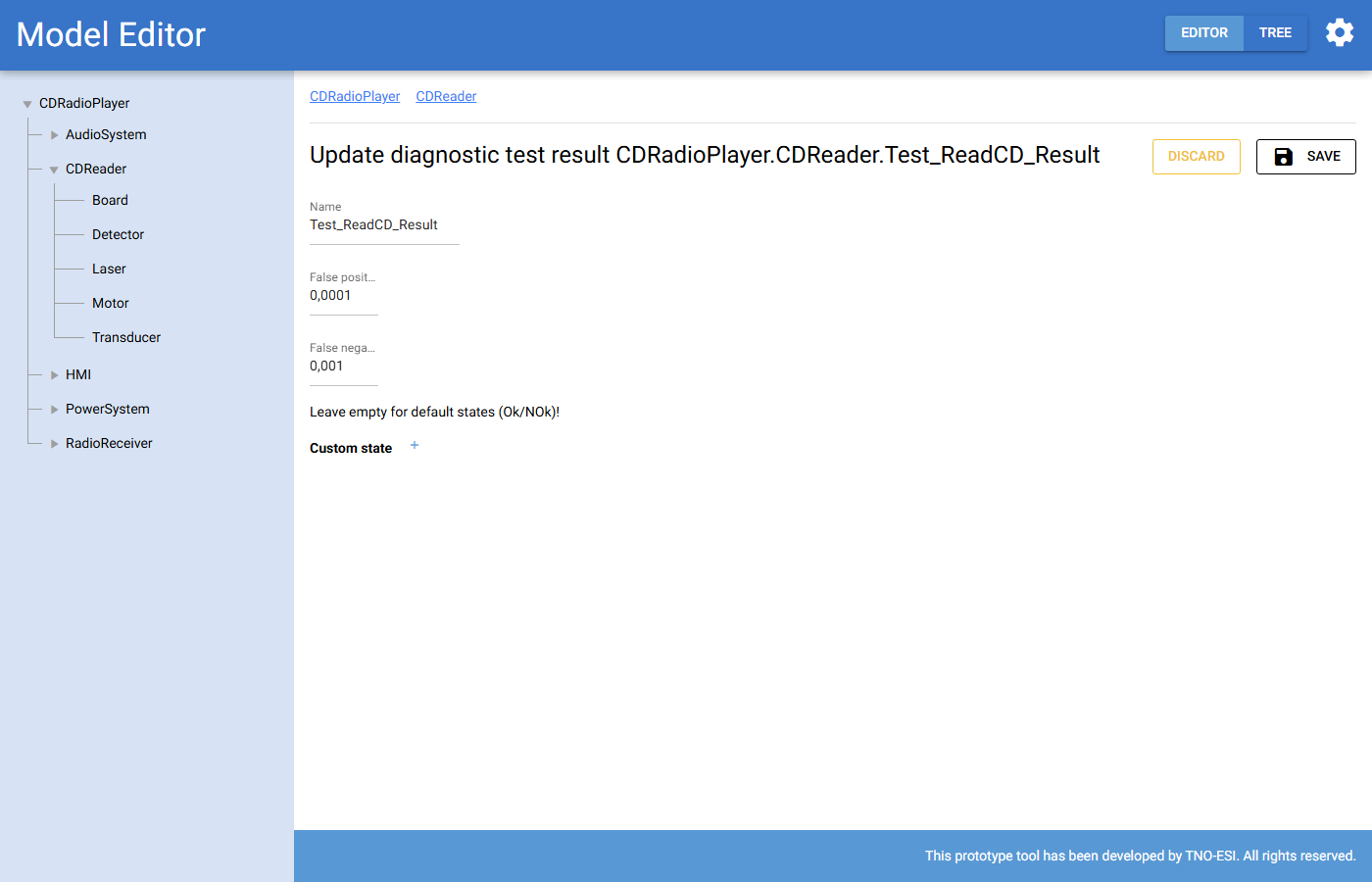
Fig. 37 Editing a test result.
Tested items
The tested items button of a result opens a page to choose which functions and hardware the result indicates. Items are grouped per cluster. Select an item with its checkbox and set its weight with the slider.
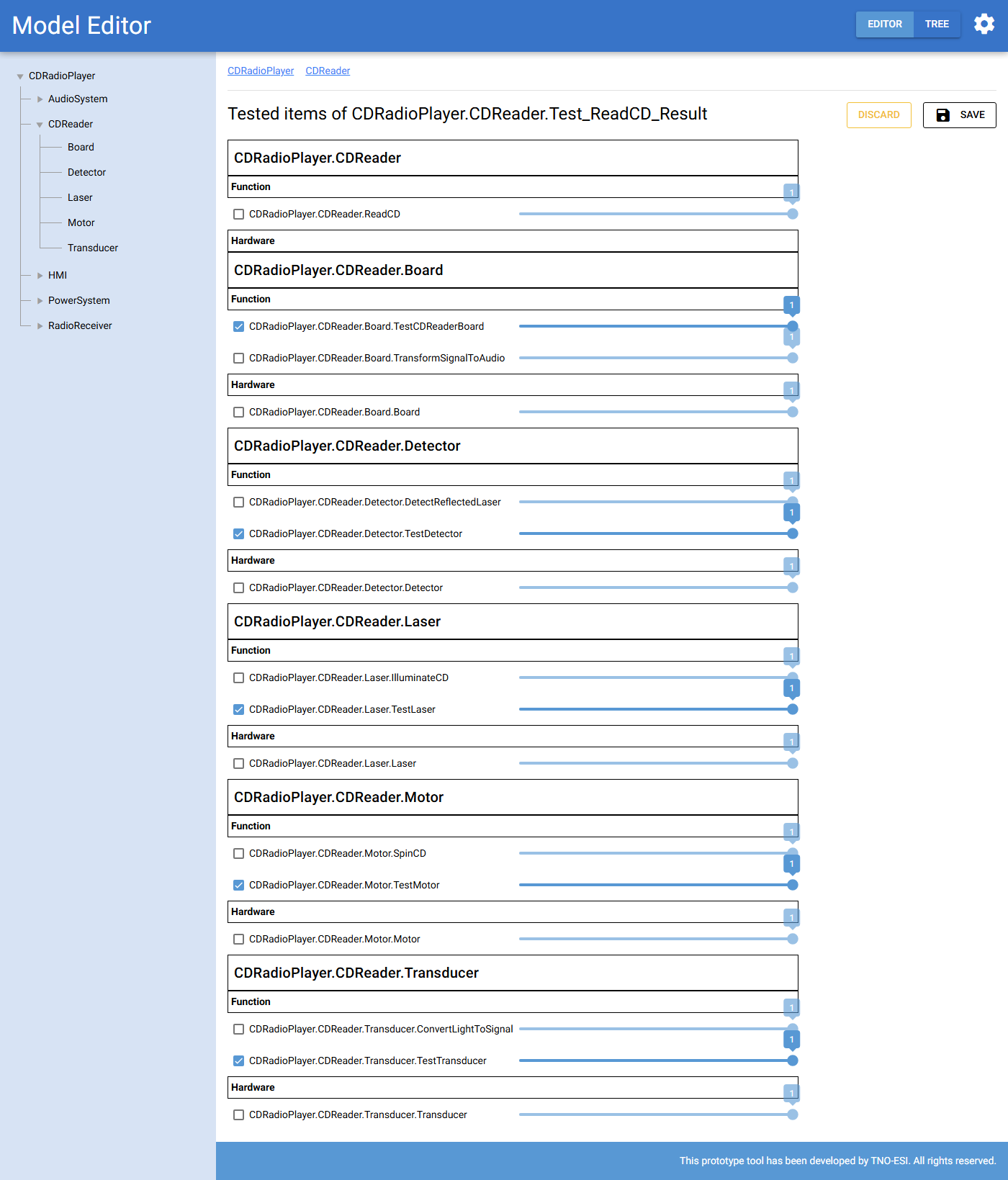
Fig. 38 Selecting the tested items of a test result.
Like observables, a test can be moved one cluster up with the move up button on its page.
Operating mode selectors
Create an operating mode selector with in the
Operating mode selectors table. Enter a name and the list of operating modes
(by default OperatingMode_1 and OperatingMode_2).
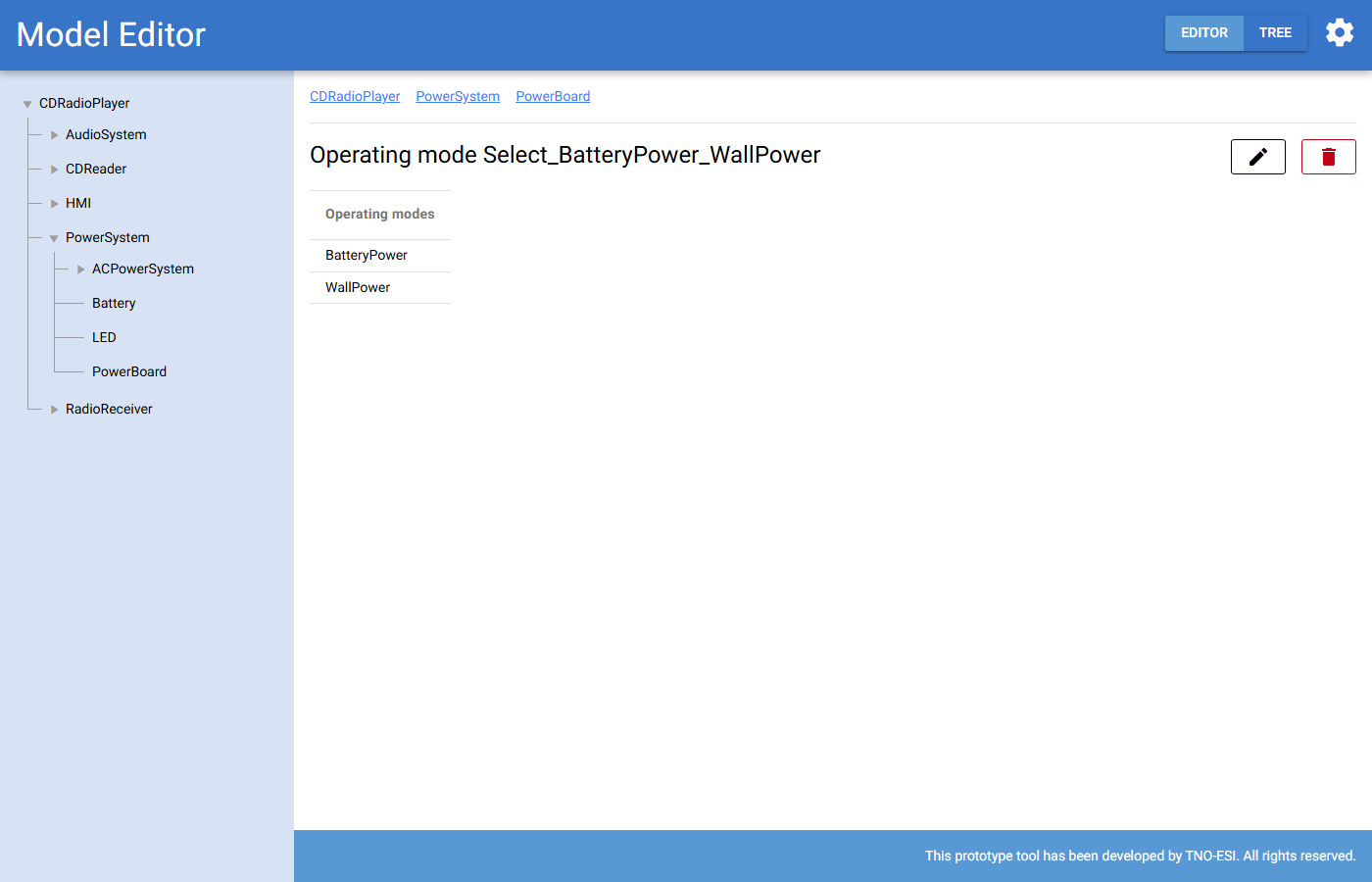
Fig. 39 The page of the operating mode selector Select_BatteryPower_WallPower.
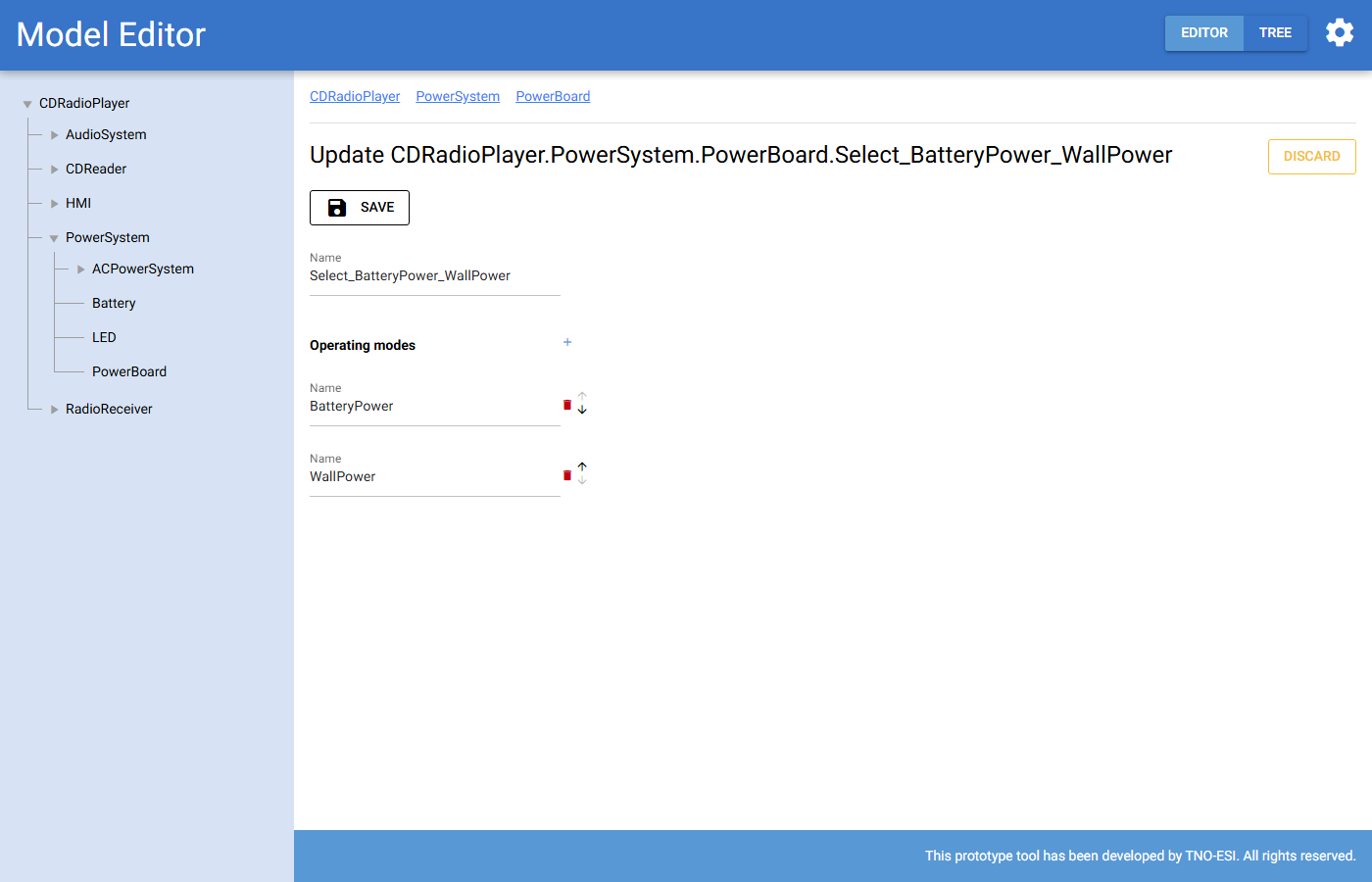
Fig. 40 Editing the operating modes of a selector.
When you rename an operating mode, the required for relations that use it are updated. When you remove a mode, it is also removed from those relations.
After you define the modes, use them in required-for relations.