The diagnoser
The diagnoser supports a service engineer who is troubleshooting a system. You enter what you know, for example the operating mode, observed errors and test results. The diagnoser then computes:
the diagnosis: how likely each hardware part is to be faulty;
a ranked list of diagnostic tests that would best narrow down the diagnosis at reasonable cost.
You repeat this until one cause stands out.
Starting the diagnoser
Open a root cluster and click  (Diagnoser). This works in
Editor mode and in Tree mode. The diagnoser always works on a complete model.
(Diagnoser). This works in
Editor mode and in Tree mode. The diagnoser always works on a complete model.
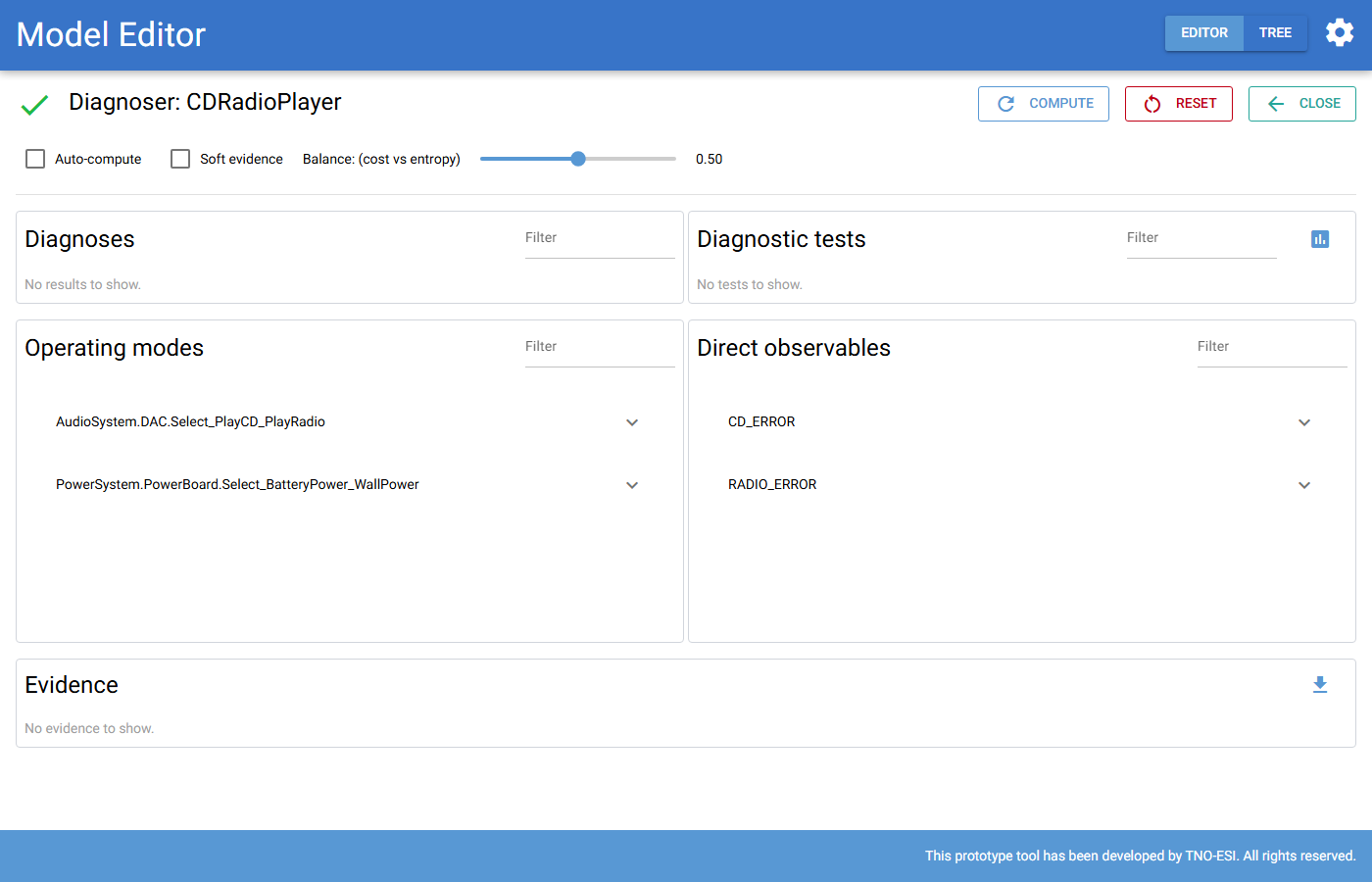
Fig. 64 The diagnoser for the CDRadioPlayer, before any evidence is entered.
The page layout

Fig. 65 The diagnoser toolbar.
- Toolbar
Compute computes the diagnosis with the current evidence.
Reset removes all evidence and starts again.
Close returns to the cluster.
Auto-compute recomputes automatically every time you enter evidence. The default comes from the settings.
Soft evidence lets you enter uncertain evidence (see Soft evidence).
Balance (cost vs entropy) sets how tests are ranked (see How tests are ranked).
The icon left of the title shows the status: a green check mark when the diagnoser is ready, a spinner while it computes, and an orange error icon if the computation failed.
- Diagnoses
The ten hardware parts that are most likely faulty. Each bar shows the probability of Healthy (green) and of each fault (red). Hover over a bar to see the exact numbers. Use Filter to find other hardware.
- Diagnostic tests
The suggested tests, best first, with their cost and expected information gain. Expand a test to enter its results. The chart button opens the cost/entropy plot. Tests appear after the first computation.
- Operating modes
One entry per operating mode selector. Expand it to select the active mode.
- Direct observables
The direct observables and observed errors. Expand one to enter what you observe.
- Evidence
All evidence entered so far.
Entering evidence
To enter evidence, expand an entry in Operating modes, Direct observables or Diagnostic tests, select a value and press Save.
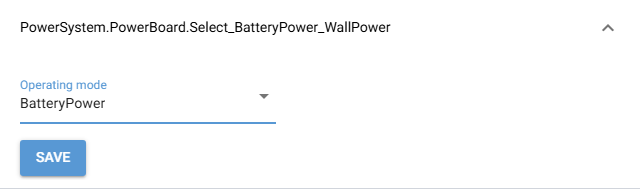
Fig. 66 Selecting the operating mode |
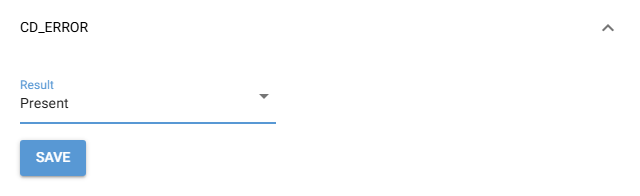
Fig. 67 Entering that |
New evidence is staged until you press Compute (unless Auto-compute is on). The Evidence table marks it with a list icon:
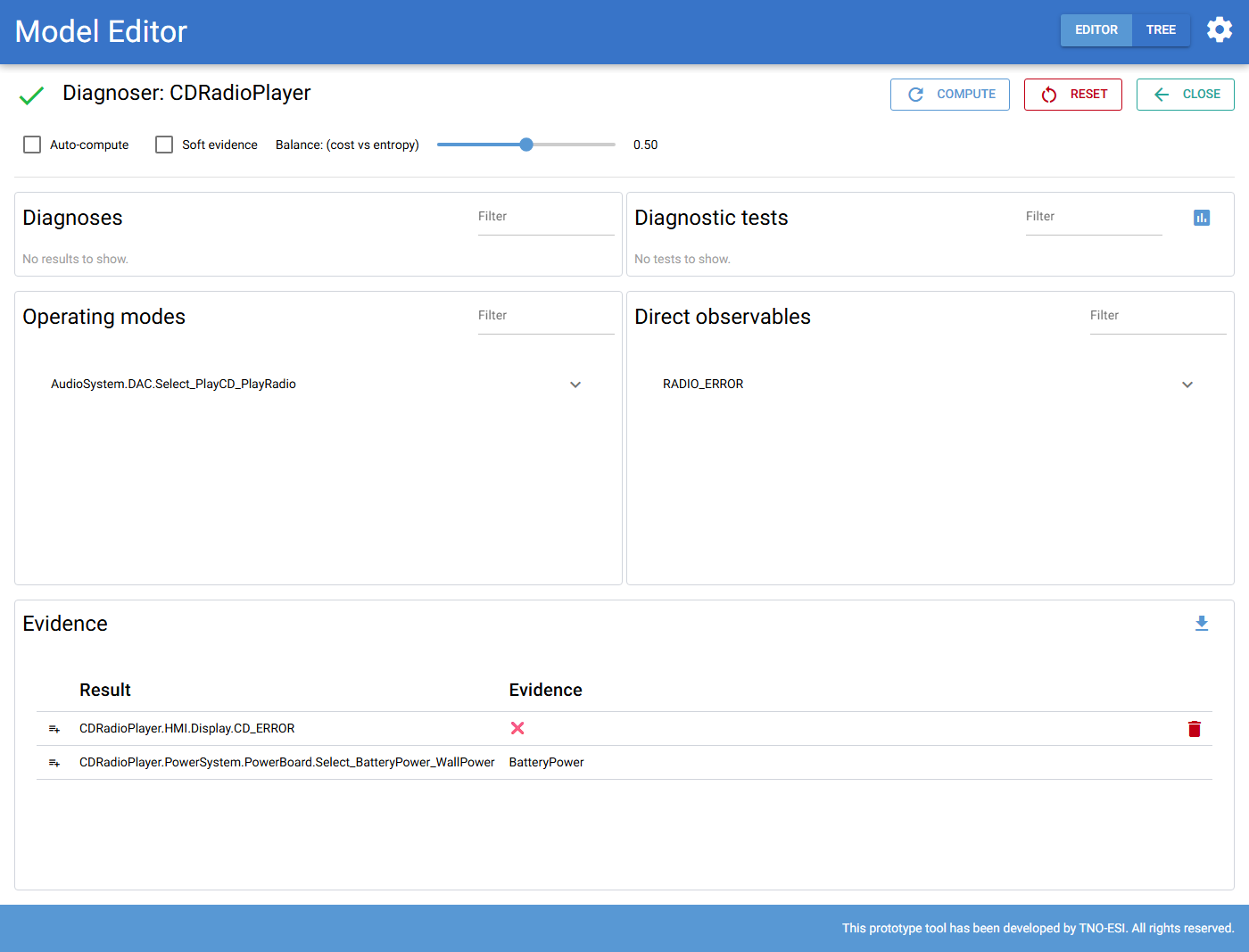
Fig. 68 Two pieces of staged evidence, not yet included in the diagnosis.
Evidence
The Evidence table lists every piece of evidence with its status:
list icon: staged. It is included at the next computation;
green check: included in the current diagnosis;
red bin icon: marked for removal at the next computation.
The Evidence column shows the entered value. For two-state nodes, ✔️ means
the first state (Ok, Absent) and ❌ means the second state (NOk,
Present). Operating modes are shown by name. Soft evidence is shown as a
list of probabilities.
Use the bin button of a row to remove evidence. Removing a test result removes all results of that test. The selected operating mode cannot be removed. Select another mode instead.
The download button at the top right exports an Excel file with three sheets: the evidence, the health of all hardware, and the ranked tests (including the balance used).
Walkthrough: the CD player does not play
This example uses the CDRadioPlayer model. The player runs on batteries and the
display shows CD_ERROR.
Enter the situation. Set
Select_BatteryPower_WallPowertoBatteryPowerandCD_ERRORtoPresent, then click Compute.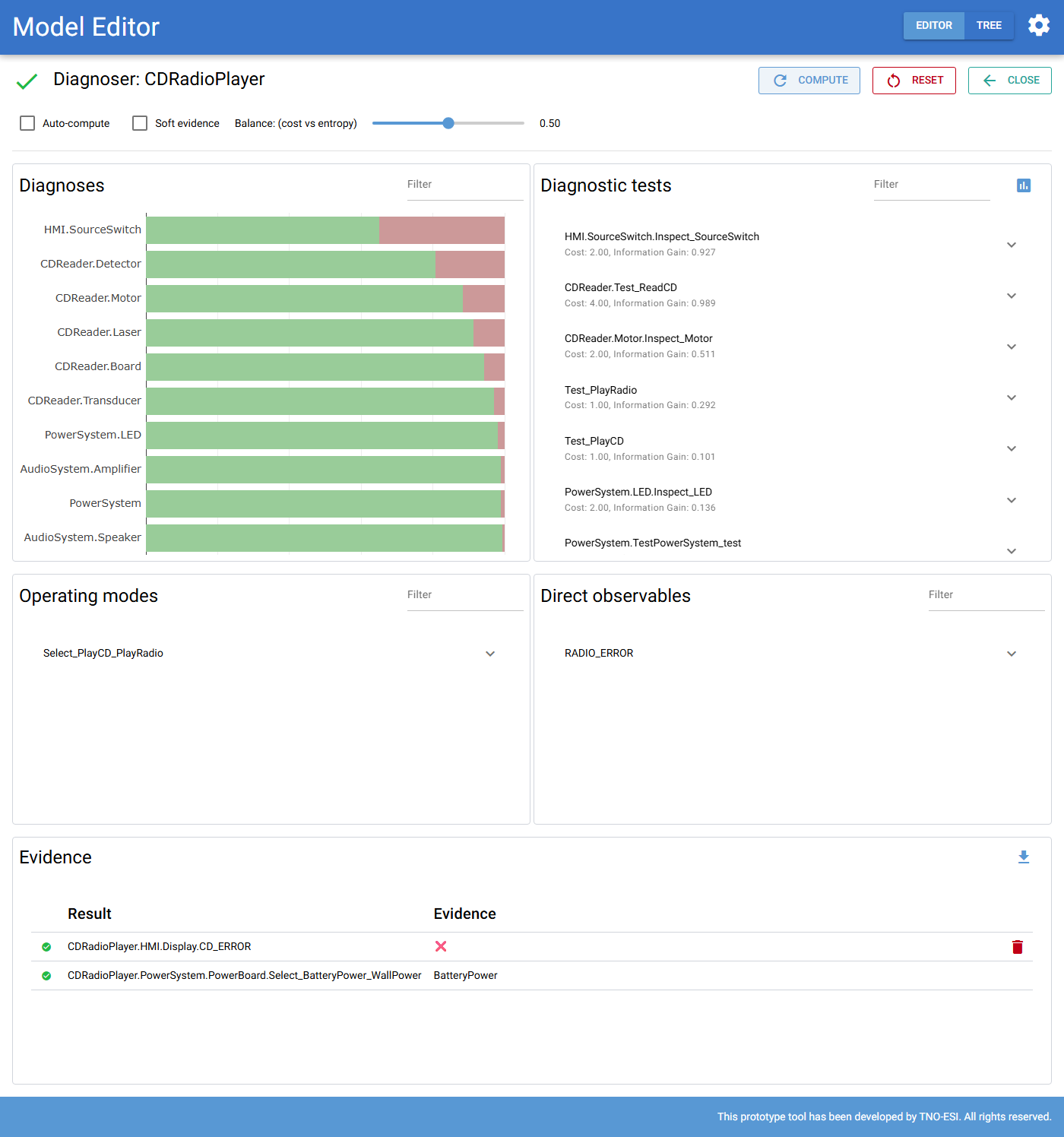
Fig. 69 The first diagnosis. The source switch of the HMI and the CD reader parts are the main suspects. Inspecting the source switch is the best next test.
The diagnosis shows that several parts can explain the error. The suggested tests include cheap system-level tests, such as
Test_PlayRadio(cost 1). Inspections of individual parts cost more.Perform a test. Playing the radio works fine. Expand
Test_PlayRadio, selectOkand save. Compute again.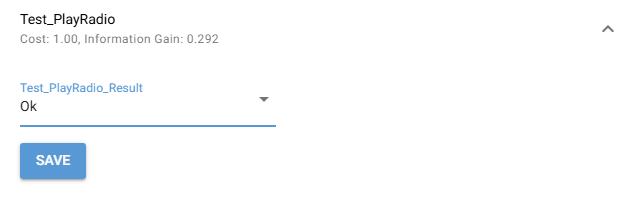
Fig. 70 Entering the result of
Test_PlayRadio.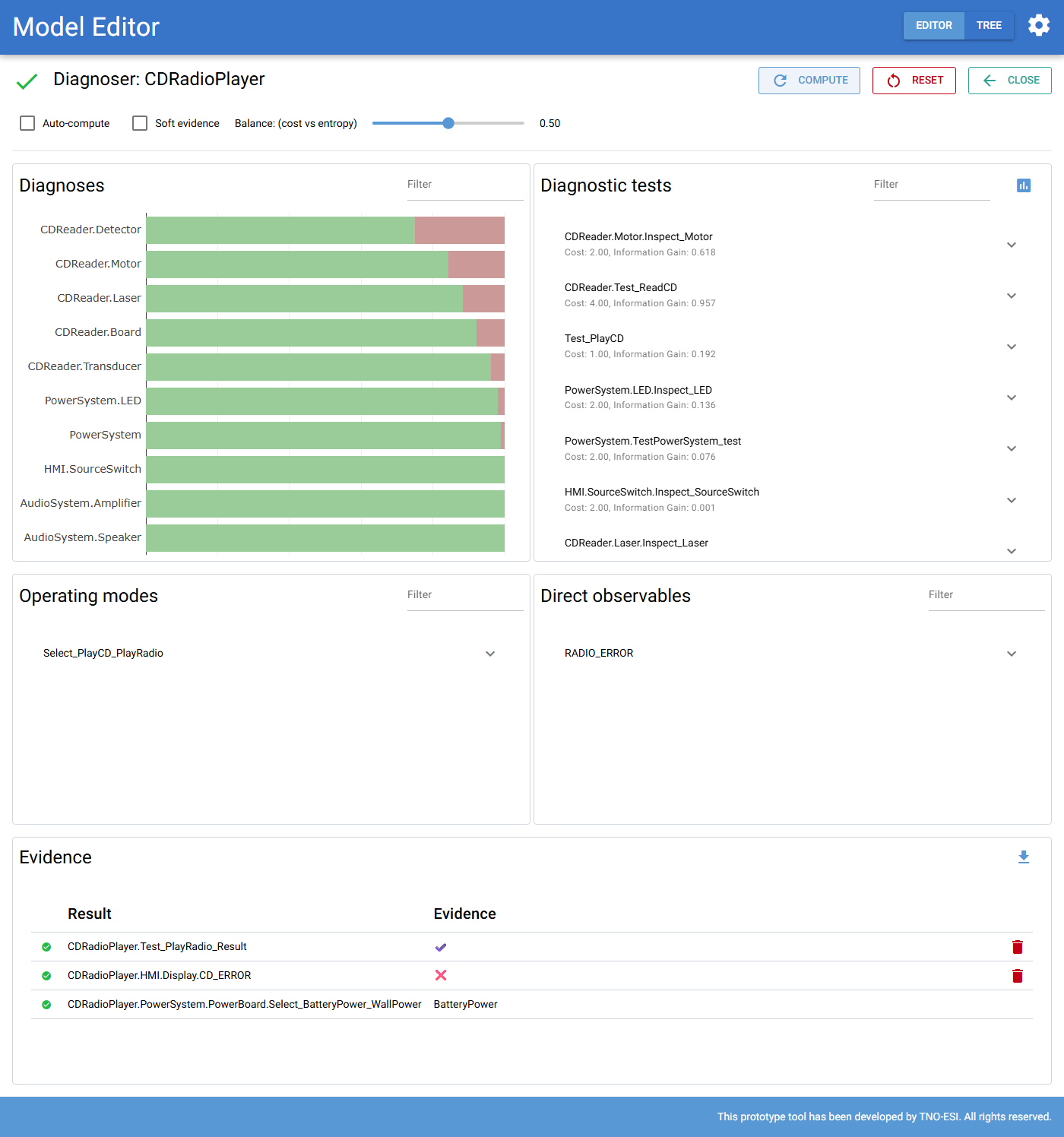
Fig. 71 Because the radio works, the source switch, display and audio path are probably fine. The
CDReader.Detectoris now the main suspect, and inspecting the motor or reading a CD are the most useful next tests.Continue with the suggested tests until one cause is clearly the most likely. Then repair it.
How tests are ranked
For every test, the diagnoser computes the information gain: how much uncertainty (entropy) about the diagnosis the test is expected to remove. Each test also has a cost. The ranking minimizes a loss that combines both:
where \(b\) is the balance slider (default 0.5):
move the slider to the left (towards 0) to prefer cheap tests;
move it to the right (towards 1) to prefer informative tests.
The chart button in the Diagnostic tests panel plots all tests:
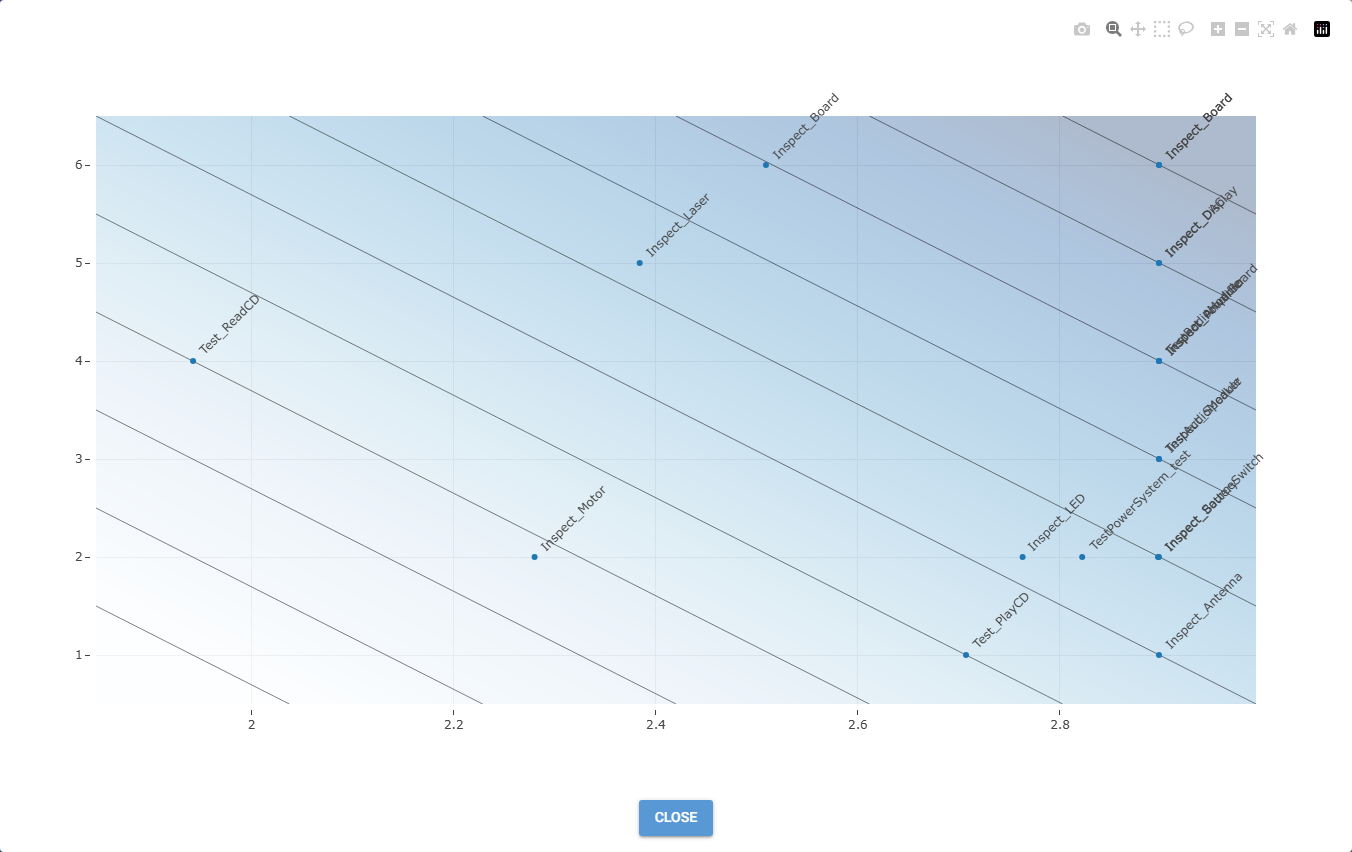
Fig. 72 Cost versus expected remaining entropy for every test. The lines are lines of equal loss. Tests in the lighter area (lower left) are better.
Soft evidence
Sometimes an observation is uncertain. For example, the engineer thinks a component looks probably fine. With Soft evidence turned on, you enter evidence with sliders instead of selecting a single state. For two-state nodes, one slider sets the balance between the two states.
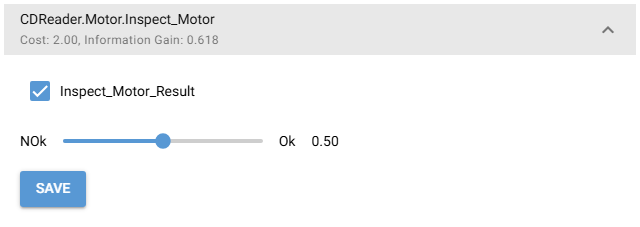
Fig. 73 Entering soft evidence with a slider.